Figma from a game controller
 The Figma layout is built into InputConfig, free on the Mac App Store. You don't have to make an account, there are no subscriptions, and nothing is locked. Optimized for Apple silicon.
On a Mac: The Figma desktop app and Figma in a browser take the same tool keys from this layout. Nothing to enable in Figma.
Yes, you can use Figma on a Mac with a game controller, and design tools are a controller's best case: a pointer and a handful of tool keys. This layout puts the four tools you switch between most on the face buttons, so your right thumb picks the tool and your left thumb draws it. It is not how you would design a whole app, but for reviewing, nudging and the light editing you do in a meeting, it is comfortable.
On this page: 7 sections
The layout, control by control
How the layout thinks
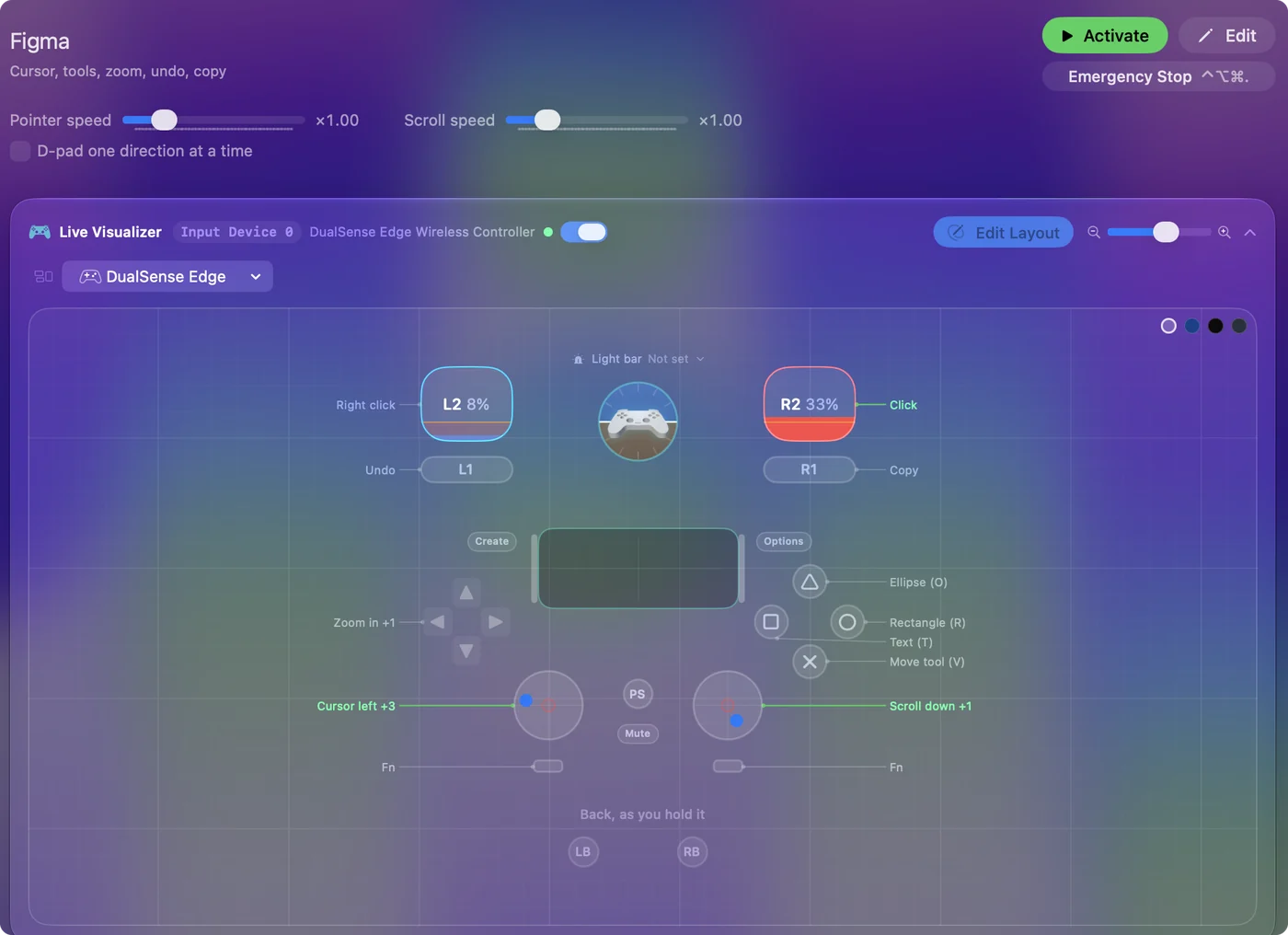
- Pick a tool. Move (V) on the bottom face button, Rectangle (R) on the right, Text (T) on the left, Ellipse (O) on the top.
- Draw and select. The left stick is the pointer, the right trigger clicks and the left trigger right-clicks.
- Move around the canvas. The right stick scrolls, and D-pad up and down zoom in and out (Command Plus and Command Minus).
- Undo and copy. On the bumpers.
The Figma desktop app and Figma in a browser take the same keys. The right thumb picks the tool, the left thumb places it.
Tune it for Figma
- Pan the canvas. In Figma, holding Space while dragging pans. Make a row on a bumper with two outputs, Space and a left click. Both stay held for as long as you hold the bumper, so moving the stick drags the canvas.
- Nudge. The arrow keys move a selection a pixel, Shift and an arrow ten. D-pad left and right are free, and a chord gives you the ten-pixel step.
- A slow pointer for small handles. The Pointer speed slider on the preset's page changes every pointer row at once. For a second, slower speed only while a button is held, copy the four pointer rows with a lower speed and set While also holding to that button under Second control.
- Paste, group, frame. Put Command V, Command G and F on the stick clicks and the touchpad press.
- Zoom to fit. Shift 1 fits everything, Shift 2 the selection.
The held slow pointer is the one that changes how it feels. A slower pointer behind a held button makes a stick precise enough for handles.
The short version
- Use it for review and light edits. A mouse or pen is still better for drawing a whole interface.
- Add the pan row. Space and a left click held together.
- Add a slow pointer. Put it behind a held bumper.
Sketch uses the same four tool keys and has its own entry. Four tools, a pan and a slow pointer cover most of a day in Figma that is not drawing.
Get it in two clicks
- Get InputConfig free on the Mac App Store, open it, and click Smart Preset Maker on the welcome screen.
- Search for Figma and pick it. The layout is created as a preset in your sidebar, named and ready.
- Press Activate. Every row can be changed afterwards: the editor's Scan button rebinds any control the moment you touch it.
Every binding, as a table
| Controller | Sends | What it does |
|---|---|---|
| Left stick left | Mouse motion left (speed 16) | Cursor left |
| Left stick right | Mouse motion right (speed 16) | Cursor right |
| Left stick up | Mouse motion up (speed 16) | Cursor up |
| Left stick down | Mouse motion down (speed 16) | Cursor down |
| Right stick down | Scroll down | Scroll down |
| Right stick up | Scroll up | Scroll up |
| Right trigger | Left click | Click |
| Left trigger | Right click | Right click |
| A / Cross | V | Move tool (V) |
| B / Circle | R | Rectangle (R) |
| X / Square | T | Text (T) |
| Y / Triangle | O | Ellipse (O) |
| LB / L1 | Command (Left), Z | Undo |
| RB / R1 | Command (Left), C | Copy |
| D-pad up | Command (Left), = | Zoom in |
| D-pad down | Command (Left), - | Zoom out |
Button names follow the Xbox / PlayStation pair shown in the editor, so A / Cross is the bottom face button on either pad. On a Switch Pro Controller the bottom button is labeled B; the mapping still fires on position.
Questions
Is a stick precise enough for design work?
With a slow speed behind a held button, for nudging and reviewing, yes. For drawing a whole interface a mouse or a pen is still better. This layout is for the rest of the day.
Does it work in Sketch or Illustrator?
Sketch uses the same four tool keys and has its own entry, as does Illustrator with its own tools.
Related
Completely free. You don't have to make an account, there are no subscriptions, and nothing is locked. Optimized for Apple silicon. Open source on GitHub.
Updated