Read an ebook from a game controller
 The eBook Reader layout is built into InputConfig, free on the Mac App Store. You don't have to make an account, there are no subscriptions, and nothing is locked. Optimized for Apple silicon.
On a Mac: Works in readers that turn pages on the arrow keys: Kindle, Books, Preview and most others. Nothing to enable.
Yes, you can turn pages in Kindle, Apple Books and Preview on a Mac from a game controller, with next page under every finger, so whatever your hand is doing, it turns the page. Readers that turn pages on the arrow keys need nothing enabled. This is one of the layouts people write to me about, because it is the first time some of them have read a long book without holding it.
On this page: 7 sections
The layout, control by control
How the layout thinks
- Next page. Right Arrow on the right trigger, the right bumper, the bottom face button and D-pad right.
- Previous page. Left Arrow on the left trigger, the left bumper, the right face button and D-pad left.
- PDFs and web books. The right stick scrolls within a page, and zoom in and out sit on the left and top face buttons.
If you already have a Bluetooth page turner
You may not need any app. Most Bluetooth page turners, the pedals and clickers sold for sheet music and e-readers, pair with a Mac as a keyboard and send the arrow keys or Page Up and Page Down. Climb this ladder, smallest step first:
- Pair it and press it. Pair it in System Settings, Bluetooth, open the book, and press it.
- Check its mode. If the pages do not move, the pedal is sending a key your reader ignores. Many have a mode switch.
- Use a game controller instead. InputConfig listens to keys alongside macOS rather than replacing them, and keys from every keyboard count as the same key, so it can give a pedal's key an extra job but cannot change what the pedal sends. A game controller is not a keyboard, so every button is free.
For music on a stand, the sheet music page turner page adds a digital piano's pedal. A pedal that sends arrow keys needs no software at all.
Tune it for long reads
- Read aloud. Select All, then the Speak Selection system function, and the page reads itself.
- Bigger text. Use the reader's own text size, and put the macOS Zoom on a button as a backup.
- One button. For a single switch, one next-page button is a complete reader. The few-switches guide starts there.
- Feel the turn. Tick Vibrate under Feedback in the next page rows' Options, at a very low strength.
Rest the controller on the blanket, and the book turns its own pages.
Get it in two clicks
- Get InputConfig free on the Mac App Store, open it, and click Smart Preset Maker on the welcome screen.
- Search for eBook Reader and pick it. The layout is created as a preset in your sidebar, named and ready.
- Press Activate. Every row can be changed afterwards: the editor's Scan button rebinds any control the moment you touch it.
Every binding, as a table
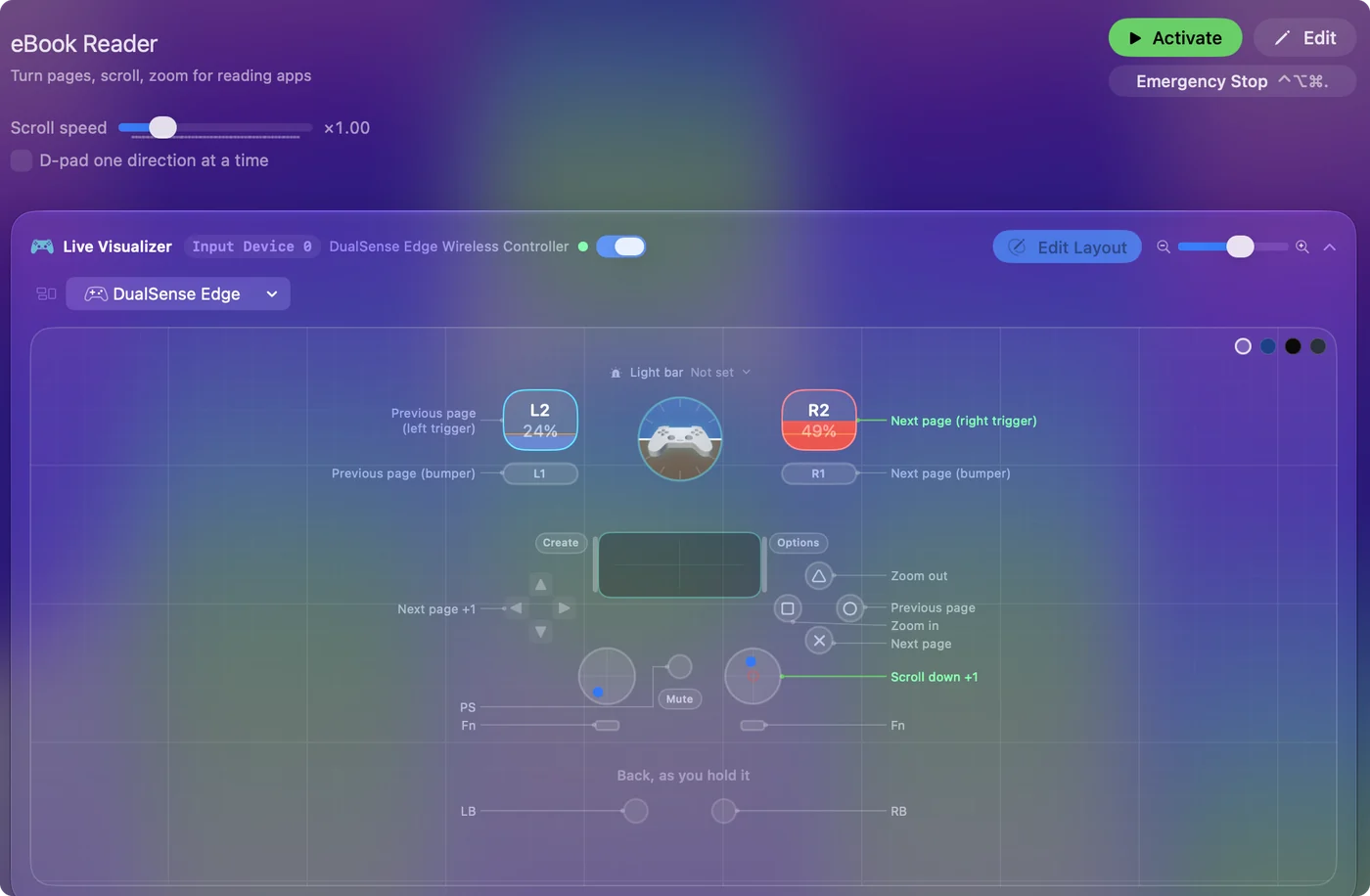
| Controller | Sends | What it does |
|---|---|---|
| Right trigger | Right | Next page (right trigger) |
| Left trigger | Left | Previous page (left trigger) |
| A / Cross | Right | Next page |
| B / Circle | Left | Previous page |
| RB / R1 | Right | Next page (bumper) |
| LB / L1 | Left | Previous page (bumper) |
| D-pad right | Right | Next page |
| D-pad left | Left | Previous page |
| Right stick down | Scroll down | Scroll down |
| Right stick up | Scroll up | Scroll up |
| X / Square | Command (Left), = | Zoom in |
| Y / Triangle | Command (Left), - | Zoom out |
Button names follow the Xbox / PlayStation pair shown in the editor, so A / Cross is the bottom face button on either pad. On a Switch Pro Controller the bottom button is labeled B; the mapping still fires on position.
Questions
Does it work with the Kindle app?
Yes. Kindle turns pages on the arrow keys, as do Books, Preview and most readers.
Can I use a game controller as a page turner on a Mac?
Yes. With this layout active, the triggers, bumpers, D-pad and two face buttons turn the page forward and back.
Is there a page turner for a MacBook?
Any Bluetooth page turner that sends arrow keys works with nothing installed. A game controller with this layout is the free alternative if you already own one.
Related
Completely free. You don't have to make an account, there are no subscriptions, and nothing is locked. Optimized for Apple silicon. Open source on GitHub.
Updated