Guides
A game controller as a QLab GO button
A game controller can be your QLab GO button and cue remote on a Mac. With InputConfig, A fires GO, the D-pad moves the playhead, X pauses everything, and Panic sits on a button you will not hit by accident. It works over MIDI, so it keeps working even when QLab is not the app in front.
A dedicated GO button can cost a surprising amount of money; a game controller is probably already in a drawer. Setting it up takes about ten minutes, and you never type a note number.
 InputConfig is free on the Mac App Store. macOS 14 or later, no account, no tracking, open source.
On this page: 10 sections
Steps
- Connect your controller and open InputConfig.
- Download the QLab Cue Remote preset from this page, double-click it, and turn it on.
- In QLab, open Workspace Settings with Command comma, then go to Controls, Workspace MIDI.
- Turn on the musical MIDI controls and set the channel to Any or 1.
- Click Capture next to GO and press A on the controller. Do the same for the playhead controls, Pause All, and Panic.
- Run a few cues in rehearsal to make sure every button does what you expect.
Use MIDI, not keys, for a show
You can do this two ways:
- Keys. In QLab, Space is GO by default and Escape is always Panic, so a button that sends Space works right away. The catch: keys only reach QLab when it is the front app, and in a real show something else will eventually steal focus at the worst possible moment.
- MIDI. QLab listens to MIDI in the background, whatever app is in front.
For anything with an audience, use MIDI, because it does not depend on which app is in front.
Know what the preset sends
The QLab Cue Remote preset on this page sends MIDI notes 60 to 64 on channel 1:
| Button | Sends | Captured in QLab as |
|---|---|---|
| A / Cross | Note 60 | GO |
| D-pad up | Note 61 | Playhead to previous cue |
| D-pad down | Note 62 | Playhead to next cue |
| X / Square | Note 63 | Pause All |
| Back | Note 64 | Panic |
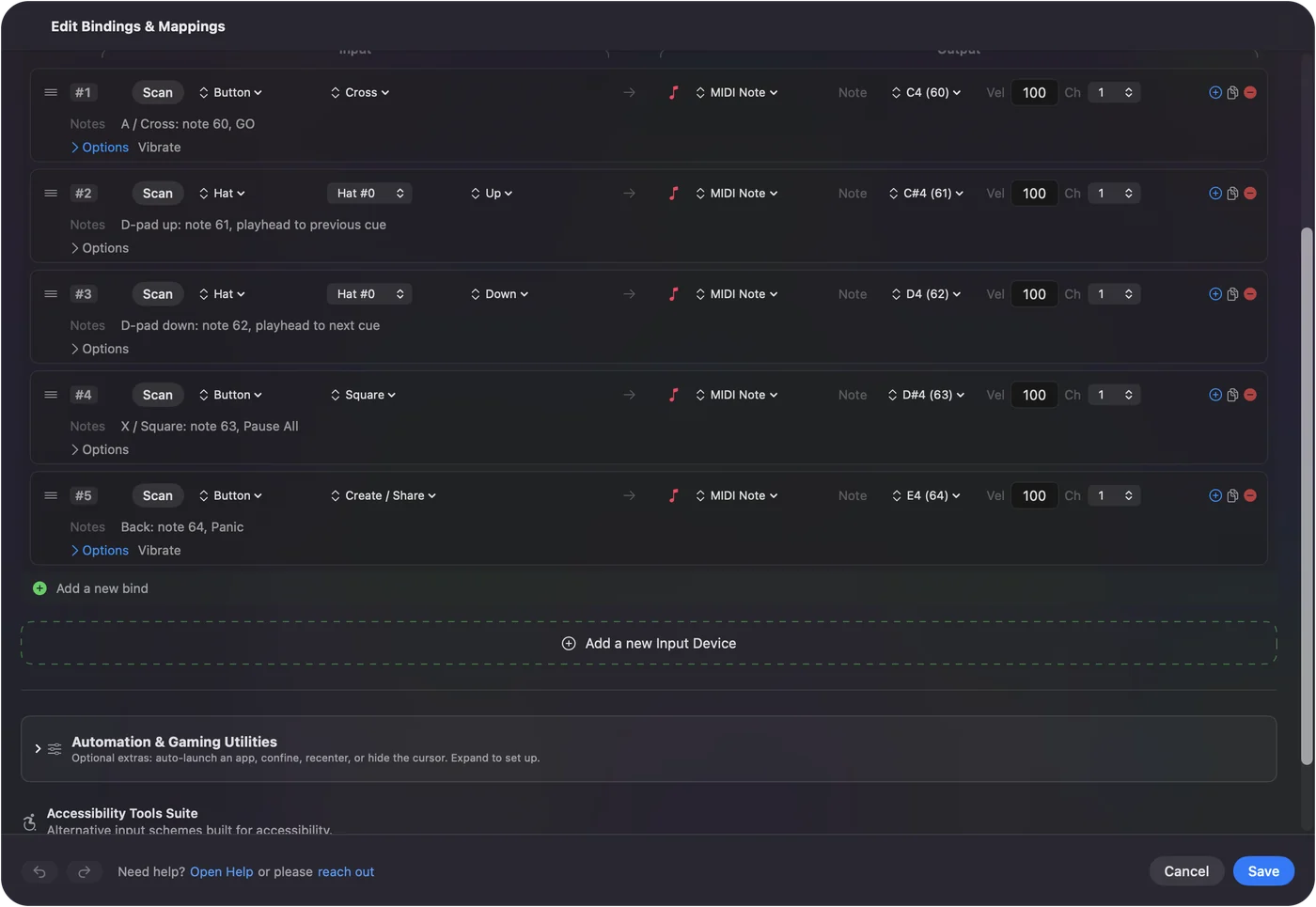
A gives a small buzz when you press it and Back gives a bigger one, so you can feel that it went through without looking down. Speak is off on every row on purpose, because the last thing you want is your controller talking during the show.
Tell QLab to listen
QLab sees InputConfig as a MIDI source on its own; you only capture which note does what.
Step 1: Open Workspace MIDI
- You: With the preset on, press Command comma to open Workspace Settings, then open Controls and Workspace MIDI. Turn on the musical MIDI controls and leave the channel on Any, or set it to 1 to match the preset.
- QLab: Starts listening to MIDI notes for its controls.
- Check: The GO, playhead, Pause All and Panic rows each show a Capture button.
Step 2: Capture each button
- You: Click Capture next to GO, then press A on the controller. Do the same for the playhead controls, Pause All, and Panic.
- QLab: Shows Waiting, then fills in the note for you.
- Check: Each row shows its note, 60 to 64.
Step 3: Rehearse
- You: Run the whole cue list once with the controller in your hand, including a Panic, with another app in front.
- InputConfig: Sends each note whatever app is in front.
- Check: Every button does what you expect, and you feel the buzz on GO and Panic.
QLab 4 can also be controlled over MIDI and the idea is the same, but its settings are laid out a little differently, so check QLab's docs for your version.
Make GO hard to hit by accident
Put GO on a button your thumb rests on, never a trigger: triggers are easy to squeeze without meaning to. If you are nervous about bumping it, InputConfig can make a button fire only after a short hold, so a brush of your thumb does nothing. The hold and double tap guide shows how. GO belongs under a resting thumb, not on a trigger.
Check these before the show
- Use a cable if you can. Bluetooth is fine in rehearsal; a cable is one less thing to go wrong.
- Charge the controller. Even if you plan on a cable.
- Run the cue list once. With the controller in your hand, including a Panic, so there are no surprises.
- Know the emergency stop. InputConfig's emergency stop drops every output InputConfig is sending in one go. Its default controller hold is Back and Start together for three seconds, and Back is Panic here, so a quick press is Panic and a long hold with Start also stops InputConfig. Move it in Settings, General if you would rather keep them apart.
Run lights from the same GO
QLab can run lights itself over Art-Net or a USB-DMX interface, so one controller can run sound and light cues from the same GO button. If your lights live in a separate app instead, the stage lighting guide covers QLC+ and Lightkey.
The short version
- Add the QLab Cue Remote preset. Notes 60 to 64 on channel 1.
- Capture each button in Workspace MIDI. GO, playhead, Pause All, Panic.
- Rehearse with another app in front. MIDI reaches QLab anyway.
Any controller InputConfig supports works, because QLab only ever sees the MIDI notes.
Download
- QLab Cue Remote presetA for GO, D-pad up and down for the playhead, X for Pause All, Back for Panic. MIDI notes 60 to 64 on channel 1, with a haptic buzz on GO and Panic. 4 KB
To add a downloaded preset: drop the file on InputConfig's Dock icon, or click the … button next to any preset in the sidebar, choose Import Preset File, and pick the file. It lands in the sidebar, ready to activate or edit. Any launch target inside a preset file is cleared on import; add one yourself in the editor if you want it.
Questions
Does QLab need any setup to see InputConfig?
No. InputConfig shows up as a MIDI source on your Mac, and QLab listens to MIDI sources on its own. You only need to capture which note does what.
Can I just use keys instead of MIDI?
Set A to send Space and QLab will GO. Just remember keys only work while QLab is the front app, which is why I use MIDI for shows.
Does this work with QLab 4?
QLab 4 can also be controlled over MIDI, and the idea is the same. The settings are laid out a little differently, so check QLab's docs for your version.
Can I use a PlayStation or Switch controller?
Any controller InputConfig supports works, since QLab only ever sees the MIDI notes.
Related
Free. macOS 14 or later. No account, nothing leaves your Mac. Open source on GitHub.