Do DualSense Edge profiles work on a Mac?
 InputConfig is completely free on the Mac App Store. You don't have to make an account, there are no subscriptions, and nothing is locked. Optimized for Apple silicon.
Yes. The DualSense Edge stores its profiles on the controller itself, so they come with it to a Mac, and you switch them on the controller by holding Fn and pressing Triangle, Circle, Cross or Square, with no app at all. What a Mac cannot do is edit them: Sony's profile editor runs on a PS5 and, through its PlayStation Accessories app, on a Windows PC.
I make InputConfig, a free Mac app. Since version 1.8 it reads the Edge's four stored profiles over USB-C and lists each one in the Profile chip above its drawing in the Live Visualizer with its name and what it remaps, so you can see what the controller will send before a game does. It lists them and does not edit them.
On this page: 10 sections
Steps
- Create and assign profiles on a PS5 in Settings, Accessories, DualSense Edge Wireless Controller, Custom Profiles, or in PlayStation Accessories on a Windows PC.
- Connect the Edge to the Mac with a USB-C cable.
- Open InputConfig and look at the four profiles it lists, with each one's name and remaps.
- To switch on the controller, hold Fn and press Triangle for the default profile, or Circle, Cross or Square for the others.
- For layouts per Mac app, keep the profile simple and build an InputConfig preset on top.
Know how the four profiles work
Sony's two support pages on Edge profiles, for the PS5 and for a PC, which I read on October 23, 2026, set out the rules:
- Four in all. The default profile plus up to three custom ones. The default cannot be edited or deleted.
- Fn and a face button. Hold Fn and press Triangle for the default, Circle for the second, Cross for the third and Square for the fourth. Fn plus Triangle always holds the default.
- Feedback when you switch. The controller vibrates and the player indicator flashes once, twice, three or four times, which you can change in the controller settings.
- Stored on the controller. Sony's PC page says profiles are saved on the controller, not the computer, so you can use them on other computers as long as you have the controller, and you do not need the app to switch.
A profile holds button assignments, stick sensitivity and deadzone, a trigger deadzone, vibration intensity and trigger effect intensity, according to Sony's PS5 page. The profile travels with the controller, so whatever it remaps, a Mac receives remapped.
See what works on a Mac with nothing installed
Sony's page on using the Edge with other devices lists macOS Ventura 13.3 or later, over Bluetooth or USB-C. It says haptic feedback, the built-in microphone and speaker do not work on a Mac, and that over Bluetooth the Create button, touchpad, light bar, motion sensor and audio features may not work.
The profiles still apply, because the controller does the remapping itself. A game that reads the Edge as a standard controller sees the buttons the active profile sends, with the stick curves and deadzones that profile sets. Switching profiles with Fn works on a Mac exactly as it does on a PS5.
List the profiles in InputConfig
- You: Connect the Edge to the Mac with a USB-C cable and open InputConfig.
- InputConfig: Reads the four profiles stored on the controller, Fn plus Triangle, Square, Cross and Circle, and lists each with its name and what it remaps.
- Check: The names match the ones you gave the profiles on the PS5 or PC, and the remaps match what you set there.
The list is read over USB-C, so use a cable that carries data, not one that only charges. Over Bluetooth the Edge's paddles and Fn buttons still bind as inputs, but plug in to read the profiles.
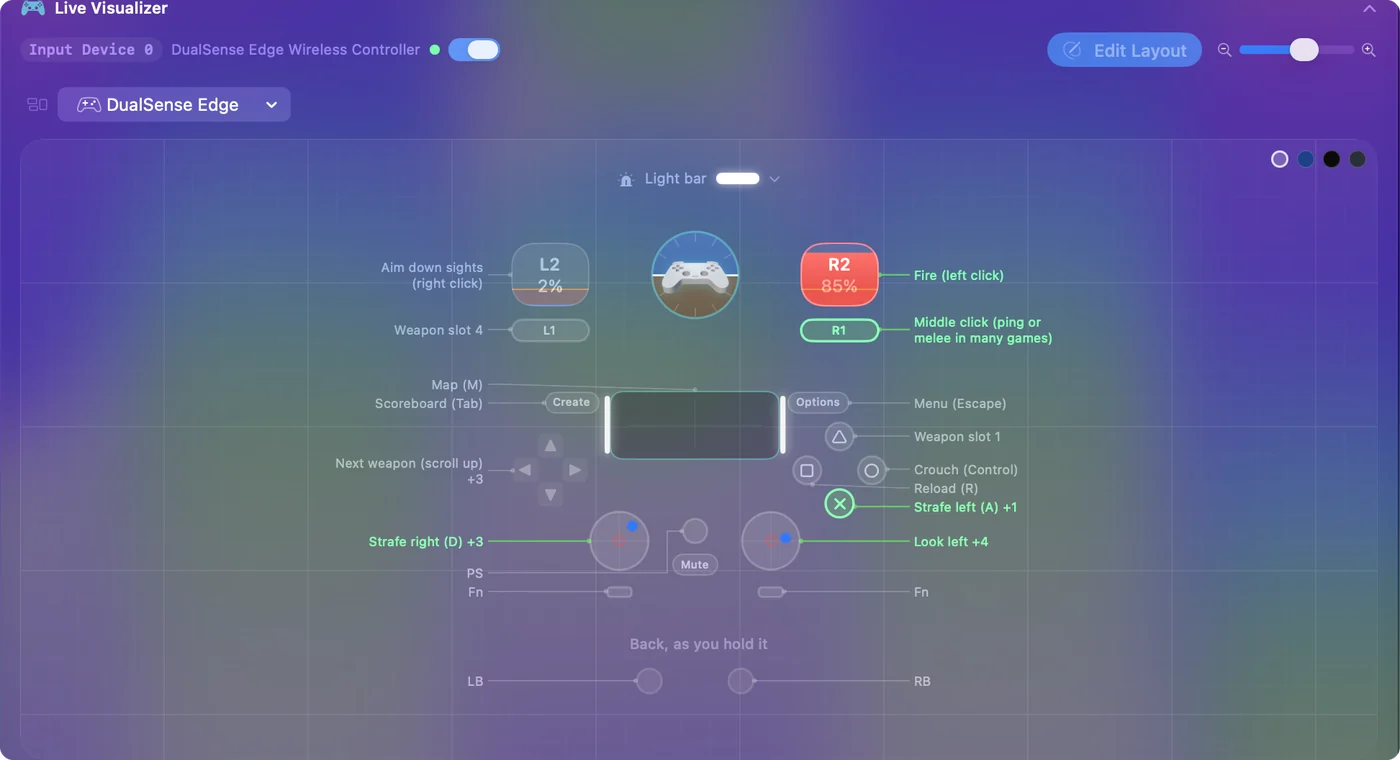
Read the list before you bind anything, because a remapped paddle sends what the profile says, not what you expect.
Edit a profile on a PS5 or a Windows PC
Editing happens on Sony's side. The steps on a PS5, from Sony's page:
- Go to Settings, Accessories, DualSense Edge Wireless Controller, Custom Profiles, and choose Create Custom Profile.
- Name it, then set button assignments, stick sensitivity and deadzone, trigger deadzone and vibration.
- On the Unassigned Profiles tab, choose Assign next to the profile and pick a shortcut: Fn plus Circle, Cross or Square.
On a Windows PC, Sony's PlayStation Accessories app creates, edits and switches profiles and saves them to the controller, and it also updates the firmware. Sony lists two limits on the PS5 page: Circle and Cross must always be assigned, and L2 and R2 can be swapped but not given to another button. Edit on a PS5 or PC once, and the Mac sees the result every time you plug in.
Use profiles and InputConfig presets together
A profile changes what the controller sends. An InputConfig preset changes what the Mac does with it, per app. They stack, so plan them together.
- Keep the default for InputConfig. Fn plus Triangle sends every button as itself, so Scan names each paddle and Fn button as its own control.
- Avoid mirrored paddles. If a profile makes a paddle copy Cross, the controller sends both and a paddle row seems to fire twice. Clear it on the PS5 or bind the copied button to nothing.
- Use profiles for feel. Stick curves and trigger deadzones from a profile reach any game that reads the controller directly.
- Use presets for apps. List each Mac app under Activate when these apps are in front, and the layout follows the app.
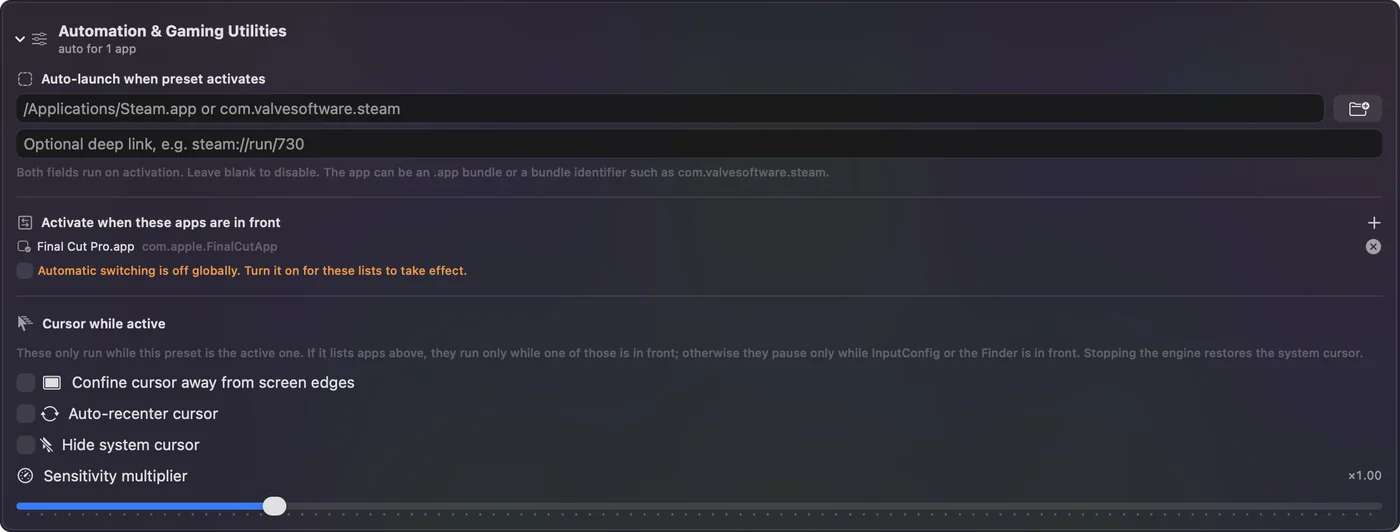
The Fn buttons are inputs too, buttons 20 and 21. A row on one also fires when you hold Fn to switch profiles, so I would leave them unbound if you switch often. That is caution, not something I measured. Profile for the controller's feel, preset for the Mac app's jobs.
If the profiles do not show
Climb this ladder, smallest step first:
- Plug in the cable. The profiles are read over USB-C.
- Try another cable. A charge only cable powers the controller without data.
- Check the Edge is seen. Click Refresh Controllers in the controller's popover, or Refresh in Settings, Devices.
- Power it off and on. Hold the PS button to turn it off, then turn it on again.
If the Mac can see the Edge over the cable, the list follows.
What it cannot do
- Edit a profile. Names, button assignments, curves and deadzones are changed on a PS5 or in PlayStation Accessories on Windows.
- Read the profiles over Bluetooth. Plug in a cable for the list.
- Bring back what Sony leaves out on a Mac. Sony lists haptic feedback, the microphone and the speaker as unavailable on Mac computers.
The short version
- Switch. Hold Fn and press Triangle, Circle, Cross or Square, on a Mac too.
- See. USB-C and InputConfig 1.8 list all four with their remaps.
- Edit. A PS5 or PlayStation Accessories on Windows.
Leave the default profile on while you build presets, and switch to a custom one only for games that read the controller.
Questions
Can you edit DualSense Edge profiles on a Mac?
No. Sony's editor runs on a PS5 and in the PlayStation Accessories app on Windows. On a Mac, InputConfig 1.8 lists the four profiles and what each remaps over USB-C, but does not edit them.
How do I switch profiles on the DualSense Edge?
Hold Fn and press Triangle for the default profile, or Circle, Cross or Square for the custom profiles assigned to them. Sony says no app is needed.
Are DualSense Edge profiles saved on the controller?
Yes. Sony's PC page says profiles are stored on the controller, so they work on other computers while you have it.
How many profiles does the DualSense Edge hold?
Four: the default profile on Fn plus Triangle, which cannot be edited, and up to three custom profiles.
Is there a PlayStation Accessories app for Mac?
Sony's support page describes it for Windows PCs only. On a Mac, InputConfig reads the Edge's paddles, Fn buttons and stored profiles.
Related
Completely free. You don't have to make an account, there are no subscriptions, and nothing is locked. Optimized for Apple silicon. Open source on GitHub.
Updated