The macOS screen zoom from a game controller
 The Screen Zoom layout is built into InputConfig, free on the Mac App Store. You don't have to make an account, there are no subscriptions, and nothing is locked. Optimized for Apple silicon.
On a Mac: Sends Option Command 8, Option Command Equals and Option Command Minus, which work once Use keyboard shortcuts to zoom is on in System Settings, Accessibility, Zoom.
Yes, you can put the Mac's screen Zoom on a game controller: zoom in, zoom out and toggle on three buttons, with the view following the pointer. The shortcuts are Option Command 8 to turn Zoom on and off, Option Command Equals to zoom in and Option Command Minus to zoom out, three-key chords that are part of why the magnifier is one of the best and least used accessibility features on the Mac. One setting has to be on first.
The layout, control by control
Turn on the setting once
- You: In System Settings, Accessibility, Zoom, turn on Use keyboard shortcuts to zoom.
- macOS: Answers the three zoom shortcuts in every app, including when InputConfig sends them from your buttons.
- Check: Press the left face button. The screen zooms, and a second press turns Zoom off.
If nothing happens when you press a button, this setting is the reason.
How the layout thinks
- Zoom. In on the bottom face button, out on the right, toggle Zoom on the left.
- Move the view. The left stick is the pointer, and the zoomed view follows it.
- Click. The right trigger clicks.
Tune it
- Add the rows to every preset. These three belong on spare buttons in your browser and reading layouts.
- Hear it too. Speak Selection on a fourth button reads what you zoomed to.
- InputConfig's own outputs. The System Function list has Zoom On / Off, Zoom In and Zoom Out, which work the same from any button.
Three buttons make the magnifier something you actually use.
Get it in two clicks
- Get InputConfig free on the Mac App Store, open it, and click Smart Preset Maker on the welcome screen.
- Search for Screen Zoom and pick it. The layout is created as a preset in your sidebar, named and ready.
- Press Activate. Every row can be changed afterwards: the editor's Scan button rebinds any control the moment you touch it.
Every binding, as a table
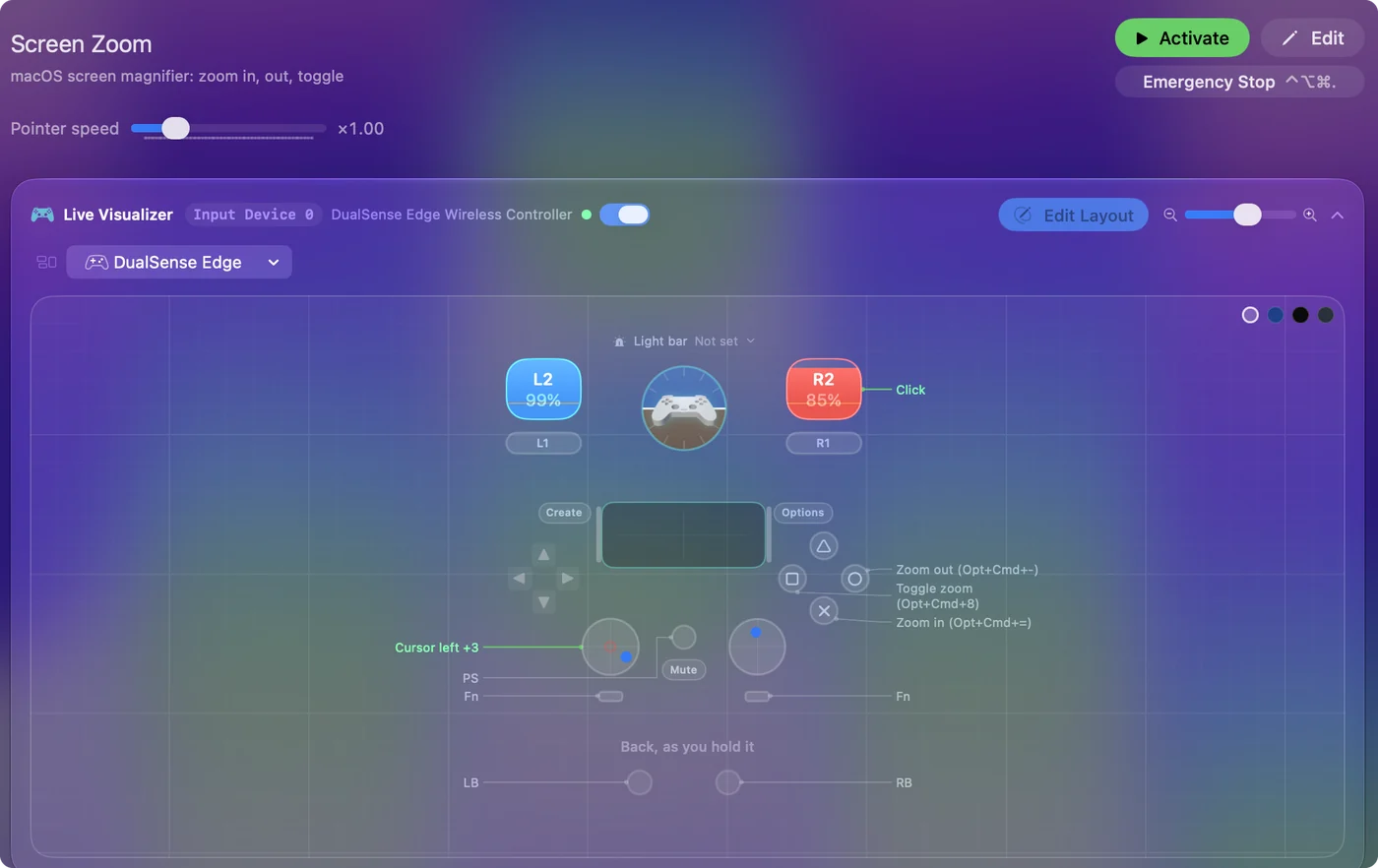
| Controller | Sends | What it does |
|---|---|---|
| A / Cross | Alt / Option (Left), Command (Left), = | Zoom in (Opt+Cmd+=) |
| B / Circle | Alt / Option (Left), Command (Left), - | Zoom out (Opt+Cmd+-) |
| X / Square | Alt / Option (Left), Command (Left), 8 | Toggle zoom (Opt+Cmd+8) |
| Left stick left | Mouse motion left (speed 16) | Cursor left |
| Left stick right | Mouse motion right (speed 16) | Cursor right |
| Left stick up | Mouse motion up (speed 16) | Cursor up |
| Left stick down | Mouse motion down (speed 16) | Cursor down |
| Right trigger | Left click | Click |
Button names follow the Xbox / PlayStation pair shown in the editor, so A / Cross is the bottom face button on either pad. On a Switch Pro Controller the bottom button is labeled B; the mapping still fires on position.
Questions
Nothing happens when I press the buttons. Why?
Turn on Use keyboard shortcuts to zoom in System Settings, Accessibility, Zoom.
My Mac screen is zoomed in and stuck. How do I fix it?
Press Option Command 8 to turn Zoom off, or Option Command Minus until it is back to normal. If those do nothing, turn Zoom off in System Settings, Accessibility, Zoom.
Related
Completely free. You don't have to make an account, there are no subscriptions, and nothing is locked. Optimized for Apple silicon. Open source on GitHub.
Updated