How to turn off a PS5 controller without the console
 InputConfig is completely free on the Mac App Store. You don't have to make an account, there are no subscriptions, and nothing is locked. Optimized for Apple silicon.
Hold the PS button for about ten seconds, until the light bar and the player lights go out. That turns a PS5 controller off with no console anywhere near it, because the controller does it itself: it works the same whether the DualSense is paired with a Mac, a Windows PC, a phone or nothing at all. A PS4 DualShock 4 turns off the same way.
On a Mac you have two more choices. You can drop the connection and keep the pairing, or let InputConfig, the free Mac app I make, disconnect the controller for you once it has sat unused for a while. When you want it back on the PS5, plug it into the console with a USB cable and press PS.
On this page: 11 sections
- Steps
- Hold the PS button until the lights go out
- Know why it stays on when the console is off
- Disconnect it from a Mac and keep the pairing
- Let InputConfig disconnect it when it sits unused
- Remove it from the Mac for good
- Give it back to the PS5
- If it will not stay off
- What a Mac cannot do
- The short version
- Questions
Steps
- Press and hold the PS button in the middle of the controller.
- Keep holding for about ten seconds, until every light on the controller goes out.
- On a Mac, to end the connection but keep the pairing, click the controller's name in Control Center's Bluetooth list.
- To have the Mac do it for you, turn on Disconnect a wireless controller after it sits unused in InputConfig's Settings, Devices.
- To use it on the PS5 again, plug it into the console with a USB cable and press PS.
Hold the PS button until the lights go out
The PS button is the round button between the two sticks. Press it and keep pressing:
| Controller | Hold | It is off when |
|---|---|---|
| PS5 DualSense or DualSense Edge | PS button, about 10 seconds | the light bar and the player lights go out |
| PS4 DualShock 4 | PS button, about 10 seconds | the light bar goes out |
- Let go once it is dark. Holding longer does nothing more, and the controller stays off until something wakes it.
- A short press wakes it again. The controller then looks for the last device it paired with and connects to it, which is why a bumped PS button in a bag brings it back to life.
- On a cable, unplug it. A controller plugged into a Mac or a PC by USB is a wired controller, so pulling the cable is enough.
The hold happens inside the controller, so it works the same on a Mac, a PC, a phone or a tablet.
Know why it stays on when the console is off
On a PS5, the controller goes to sleep after a set time because the console tells it to. That timer lives in the PS5's own Power Saving settings, and it only works while the controller is talking to the console.
Paired with a Mac, nothing sends that instruction. macOS has no controller sleep timer that I have found anywhere in System Settings, so a DualSense left on the desk stays connected, with its lights on, until you turn it off or the battery gives out. That is what most people searching for this have run into: the PS5 is off, the controller is not, and the PS5's menus that would turn it off are out of reach.
The PS button hold above is the fix that needs no menu at all. On a Mac, the next two sections are the softer options.
Disconnect it from a Mac and keep the pairing
Disconnecting ends the Bluetooth connection without forgetting the controller, so one press of PS brings it straight back.
- You: Open Control Center in the menu bar, open the Bluetooth list, and click the controller's name, DualSense Wireless Controller.
- macOS: Disconnects it and keeps the pairing.
- Check: The name is no longer marked as connected. Later, a press of PS reconnects it with no pairing steps.
If InputConfig is open, you can do the same from the app. Click the controller's entry at the top of the sidebar and choose Disconnect in the popover, or right-click the entry and choose Disconnect. The first time, macOS may ask whether InputConfig can use Bluetooth. If you said no, allow it in System Settings, Privacy & Security, Bluetooth.
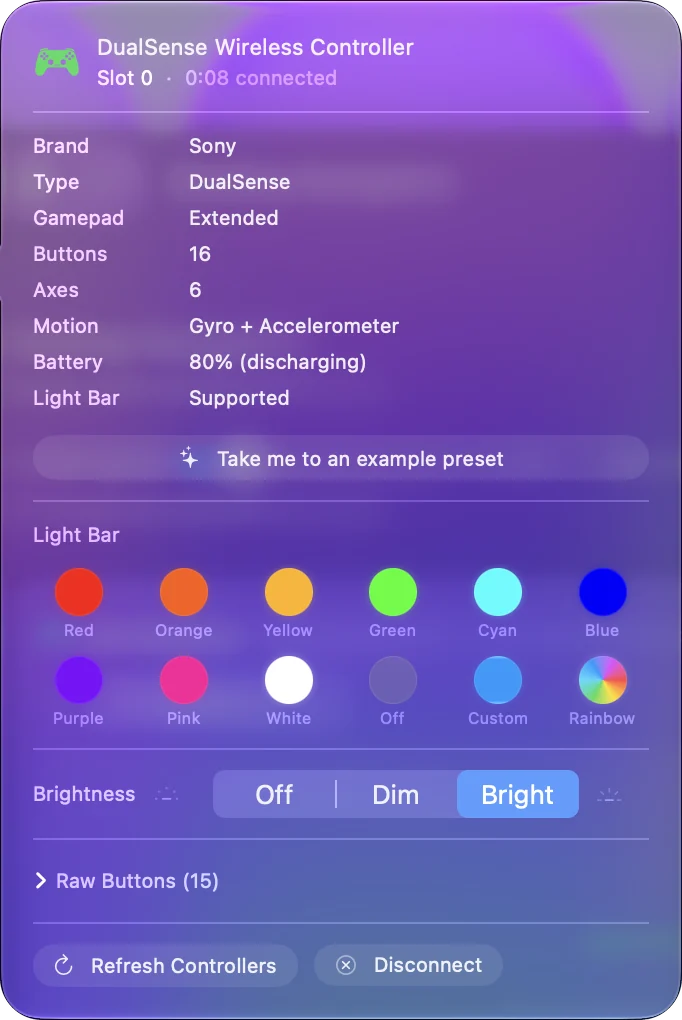
Disconnect is not the same as switching the controller off. If you want every light on the controller dark, hold the PS button.
Let InputConfig disconnect it when it sits unused
Since 1.8, InputConfig has the timer the Mac lacks. In Settings, Devices, Wireless controllers, turn on Disconnect a wireless controller after it sits unused and pick 5, 10, 15, 30 or 60 minutes.
- What counts as unused. No button pressed, no stick or trigger moved past a third of its travel, and nothing on the D-pad. Motion does not count, so a pad lying on a table still goes.
- While a preset runs. The controller stays connected unless you also turn on Also while a preset is running.
- On a cable. A wired controller is never disconnected.
- Coming back. Press PS to connect it again.
A second setting in the same place, Try to reconnect paired controllers when InputConfig opens, when the Mac wakes and when a preset starts, does the opposite job. Only a controller that is switched on and waiting can be reached, and a DualSense that is off wakes only from its own PS button. Of everything on a Mac, this setting comes closest to the PS5's own sleep timer.
Remove it from the Mac for good
Forgetting removes the pairing, so the Mac stops taking the controller when you press PS.
- Open System Settings and click Bluetooth.
- Click the info button next to DualSense Wireless Controller.
- Choose Forget This Device and confirm.
Do this when you are giving the controller away, when it has stopped connecting properly, or when the Mac keeps grabbing it from the console. To pair it with the Mac again later, hold Create and PS together until the light bar flashes, then pick it in System Settings, Bluetooth. How to connect a PS5 controller to a Mac has the full steps.
Give it back to the PS5
- PS5. Plug the DualSense into the console with a USB cable and press the PS button. After that you can unplug it, and it stays paired to the console.
- PS4. The same with a DualShock 4: USB cable into the PS4, then press PS.
A controller goes back to the last device it paired with, so after this, getting it onto the Mac again means pairing mode again. Sony has since given the DualSense four pairing slots, so it can stay paired with the Mac and the console at once, and a PS5 controller on multiple devices explains how to switch between them. If you swap every day, a USB cable on the Mac side saves re-pairing each time.
If it will not stay off
Climb this ladder, smallest step first:
- Hold it the full ten seconds. Wait until every light is out, not just until the light bar dims. A press that is too short wakes the controller instead.
- Unplug the cable. A controller charging while switched off can still show a light, and that light belongs to the controller itself, not to the Mac or the console.
- Look for what woke it. A bumped PS button wakes it and sends it to the last device it paired with. If that is a PS5 in rest mode that keeps pulling it away from the Mac, the PS5 controller keeps disconnecting page covers it.
- Reset it. Sony's DualSense troubleshooting page, which I read on October 27, 2026, puts the reset button inside the small hole on the back of the controller: unplug it, press the button with a pin for at least five seconds, then connect it to the PS5 with a USB cable and press PS. After a reset it has to be paired with the Mac again.
What a Mac cannot do
- Power it off from the menu bar. Control Center and InputConfig disconnect a controller. Switching it off is the PS button hold.
- Turn off the player lights. The small lights under the touchpad belong to macOS while the controller is connected, and they stay on.
- Cut a cable. No app can end a wired connection, so InputConfig tells you to unplug a wired controller instead.
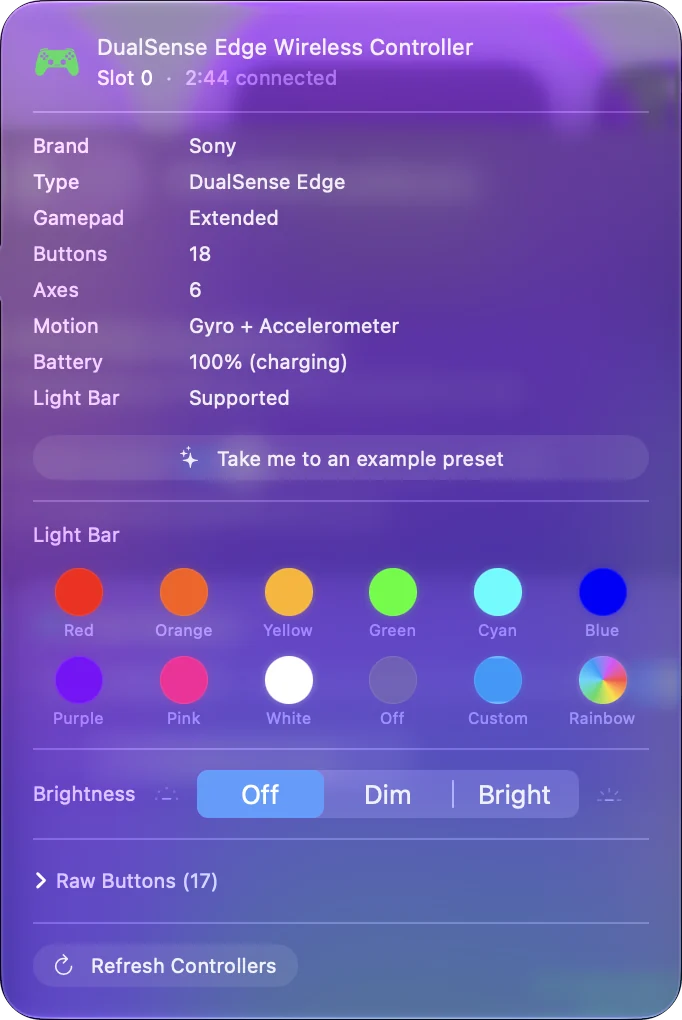
If it is only the light bar that bothers you, InputConfig can switch that off while the controller stays on: set Brightness to Off in the controller's popover. Turning off the PS5 controller light has the details.
The short version
- Off, anywhere. Hold PS about ten seconds, on a DualSense, a DualSense Edge or a DualShock 4.
- Off the Mac, still paired. Click it in Control Center's Bluetooth list, or choose Disconnect in InputConfig's sidebar.
- Off the Mac by itself. Turn on Disconnect a wireless controller after it sits unused in InputConfig's Settings, Devices.
- Back on the PS5. USB cable into the console, then press PS.
The console is only needed for its menus, and the PS button hold does the same job without them.
Questions
How do I turn off a PS5 controller without the console?
Hold the PS button for about ten seconds, until the light bar and the player lights go out. It works with the console off or far away, because the controller switches itself off.
Why does my PS5 controller stay lit when connected to my Mac?
The sleep timer that turns a DualSense off belongs to the PS5, and macOS sends no such instruction. Hold PS to turn it off, or turn on InputConfig's setting that disconnects a wireless controller after 5 to 60 minutes unused.
Can I turn off a PS5 controller from a MacBook?
You can disconnect it from the MacBook, in Control Center's Bluetooth list or with Disconnect in InputConfig, and keep the pairing. Switching the controller itself off is the PS button hold.
Does a PS5 controller turn itself off?
On a PS5, yes, after the time set in the console's Power Saving settings. Paired with a Mac it does not, unless InputConfig's Disconnect a wireless controller after it sits unused is on.
How do I get the controller back on my PS5?
Plug it into the PS5 with a USB cable and press the PS button. After that it works wirelessly on the console again, and it needs pairing mode, Create and PS, to go back to the Mac.
Related
This page in other languages: Deutsch, Español, Français, Italiano, 日本語, 한국어, Polski, Português, Русский, ไทย, 繁體中文, 简体中文
Completely free. You don't have to make an account, there are no subscriptions, and nothing is locked. Optimized for Apple silicon. Open source on GitHub.
Updated