StarCraft II on a Mac with a controller
 The StarCraft II layout is built into InputConfig, free on the Mac App Store. You don't have to make an account, there are no subscriptions, and nothing is locked. Optimized for Apple silicon.
On a Mac: Native on macOS through Battle.net, mouse and keyboard only. This layout is the mouse game from a pad. It is for the campaign and co-op, not the ladder.
Yes, StarCraft II runs natively on the Mac, and this layout plays the campaign and co-op from a pad, even though the game is mouse and keyboard only. Let me set expectations: it will get you through the campaign and co-op with friends, comfortably. It will not get you to Diamond, because the ladder expects two hundred actions a minute.
The people who use it are people whose hands need it, and for them the campaign, one of the best things Blizzard ever made, is the point.
On this page: 7 sections
The layout, control by control
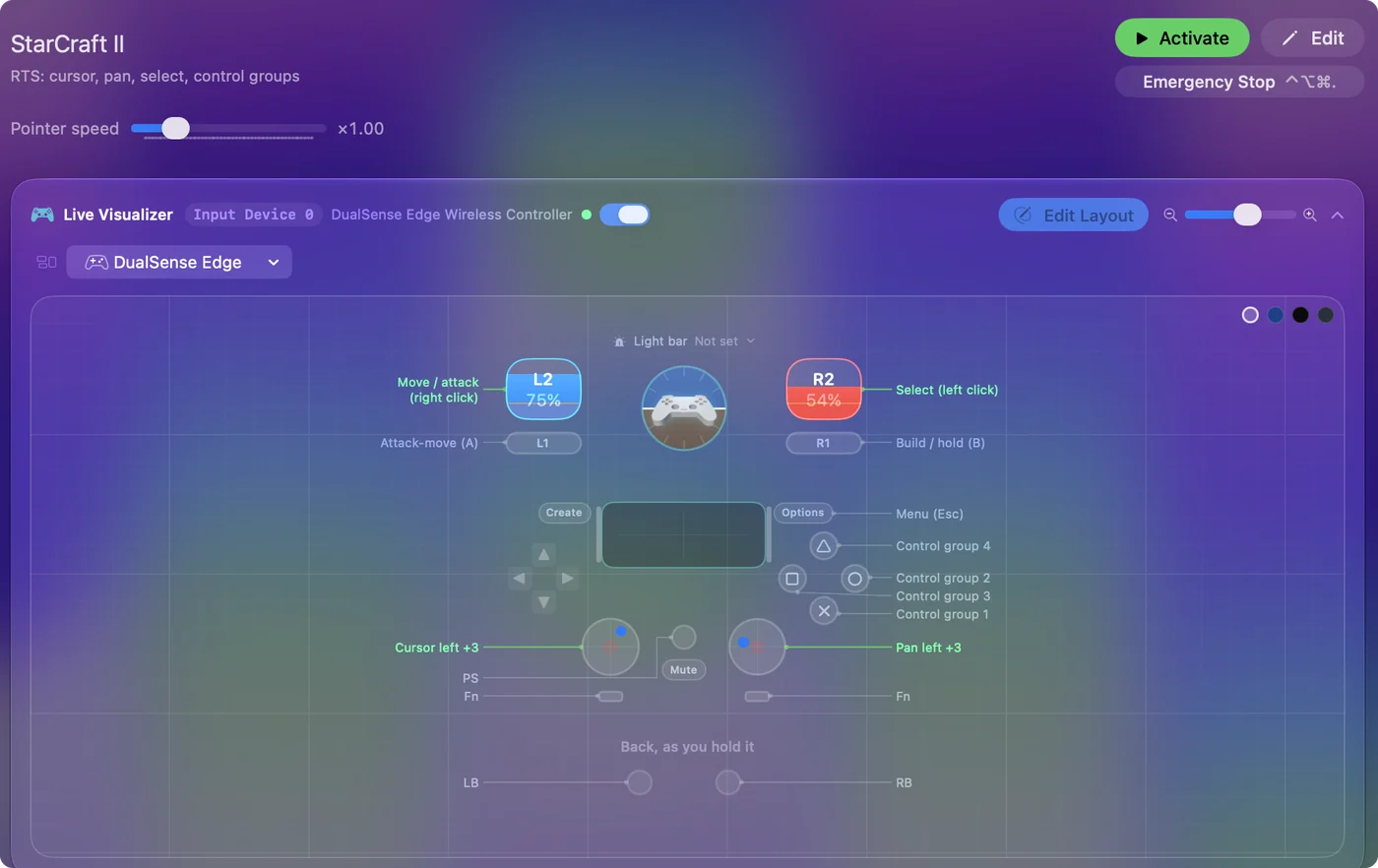
How the layout thinks
- Pointer and camera. The left stick is the pointer, the right stick pans.
- Clicks. The right trigger selects, the left trigger commands.
- Control groups. Groups 1 to 4 on the four face buttons.
- Bumpers. Attack-move (A) on the left, the worker build menu (B) on the right.
- Menu. Escape on Options.
Attack-move on a bumper does most of the micro for you.
Tune it to how you play
- Set groups. Put Control plus a number on a chord of the same face buttons.
- Grid hotkeys. Turn on the grid layout in the game's options. The command card becomes QWER and ASDF, and a chord on the D-pad reaches a row of it.
- Select army. Put F2 on the touchpad press.
- Camera hotkeys. Put F5 to F8 on a chord.
- Slow pointer. Put half speed behind a bumper for the build grid.
Grid hotkeys turn the command card into buttons a pad can reach.
If your controller is not working in StarCraft II
When StarCraft II does not react to your controller on a Mac, climb this ladder, smallest step first:
- Check that the Mac sees the controller. Open the gamepad tester and press a button. If nothing lights up there, the problem is the connection, and a controller that is connected but not working covers that first.
- Stop looking for a setting. StarCraft II reads the keyboard and mouse here, so no option makes it see a pad. Activate this layout, and the controller sends the keys and mouse movement StarCraft II already reads. The layout works without StarCraft II ever seeing the controller.
Get it in two clicks
- Get InputConfig free on the Mac App Store, open it, and click Smart Preset Maker on the welcome screen.
- Search for StarCraft II and pick it. The layout is created as a preset in your sidebar, named and ready.
- Press Activate. Every row can be changed afterwards: the editor's Scan button rebinds any control the moment you touch it.
To check the controller itself first, the gamepad tester shows every button and stick live in your browser.
StarCraft II controls: every button and the key it sends
The Sends column is StarCraft II's default keyboard and mouse controls, as this layout expects them. If you changed a key in the game's settings, change the same row in InputConfig.
| Controller | Sends | What it does |
|---|---|---|
| Left stick left | Mouse motion left (speed 18) | Cursor left |
| Left stick right | Mouse motion right (speed 18) | Cursor right |
| Left stick up | Mouse motion up (speed 18) | Cursor up |
| Left stick down | Mouse motion down (speed 18) | Cursor down |
| Right stick left | Left | Pan left |
| Right stick right | Right | Pan right |
| Right stick up | Up | Pan up |
| Right stick down | Down | Pan down |
| Right trigger | Left click | Select (left click) |
| Left trigger | Right click | Move / attack (right click) |
| A / Cross | 1 | Control group 1 |
| B / Circle | 2 | Control group 2 |
| X / Square | 3 | Control group 3 |
| Y / Triangle | 4 | Control group 4 |
| LB / L1 | A | Attack-move (A) |
| RB / R1 | B | Build / hold (B) |
| Start / Options | Escape | Menu (Esc) |
Button names follow the Xbox / PlayStation pair shown in the editor, so A / Cross is the bottom face button on either pad. On a Switch Pro Controller the bottom button is labeled B; the mapping still fires on position.
Questions
Does StarCraft II support controllers?
No. This layout gives it a pad through the mouse and keyboard, for the campaign and co-op.
Why is my controller not working in StarCraft II on a Mac?
StarCraft II reads the keyboard and mouse on this route, so no setting makes it see a controller. Check the Mac sees the pad with the gamepad tester, then activate the StarCraft II layout in InputConfig, which sends the game's keys and mouse movement from the controller.
Can I play StarCraft II on an M1 Mac or a MacBook Air?
StarCraft II has a native Mac version, and its minimum requirements are listed on its store page, so check your Mac against that list. I have not tested it on each Mac. The controller layout itself works the same on any Mac that runs InputConfig.
Related
Completely free. You don't have to make an account, there are no subscriptions, and nothing is locked. Optimized for Apple silicon. Open source on GitHub.
Updated