Questions
See what every button on your controller does
Open the preset in InputConfig 1.6 and read its Live Visualizer: it draws your controller and writes what each control does in a key down both sides of the drawing, with a line from each entry to its control. Press a button and its line turns green.
On its own, a Mac can only swap one controller button for another, in System Settings, Game Controllers. Once a mapper gives the buttons keys, clicks and shortcuts, you need a way to see who does what, especially in a preset someone else made.
On this page: 9 sections
Steps
- Click a preset in InputConfig's sidebar; it does not have to be running.
- Read the key down both sides of the Live Visualizer drawing.
- Press a control to find its entry, which turns green.
- Click a control on the drawing to see every row that uses it.
Read the key beside the drawing
- You: Click a preset in InputConfig's sidebar and look at its Live Visualizer.
- InputConfig: Writes an entry for each control in use, on the same side of the drawing as the control, in order from top to bottom. No line runs under another control or label.
- Check: Hold a button, or push a stick or trigger past about a third of its travel, and its line and its entry turn green.
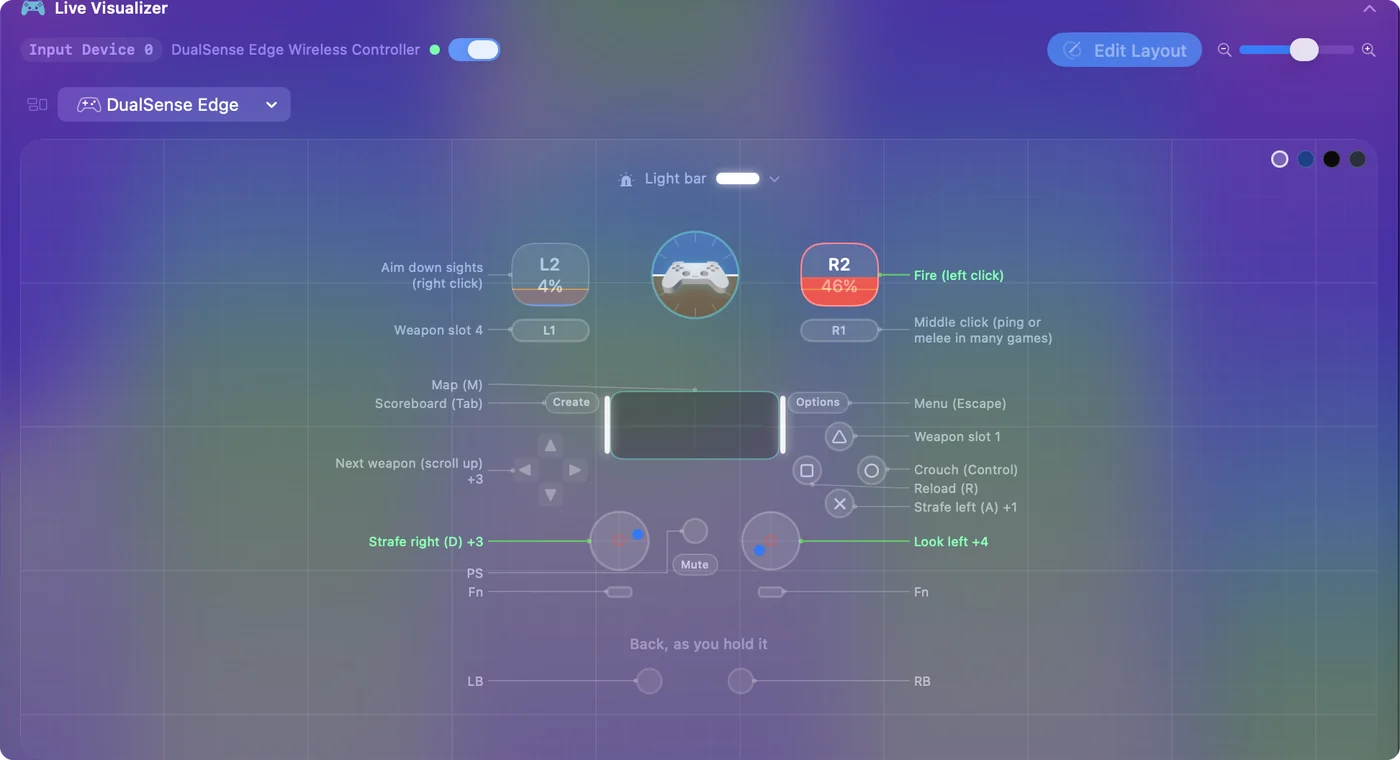
What an entry says:
- A note or an output. The row's note if the row has one, and otherwise what the row sends, such as Left click or Command + Tab.
- A count. When more than one row uses a control, the entry shows the first and a count, like Jump +1.
- A name, then a colon. A control too small to print its own name gets the name in the key, then a colon, then what it does.
- No entry. The control does nothing in this preset.
Pressing a control is the fastest way to find it in the key.
 InputConfig is free on the Mac App Store. macOS 14 or later, no account, no tracking, open source.
Click a control for every row
- You: Click any control on the drawing.
- InputConfig: Opens a popover that names it, says which controller it is on and how many rows in the preset use it, and lists each row in words, including what a hold or a double tap does.
- Check: Click a row and the editor opens at it.
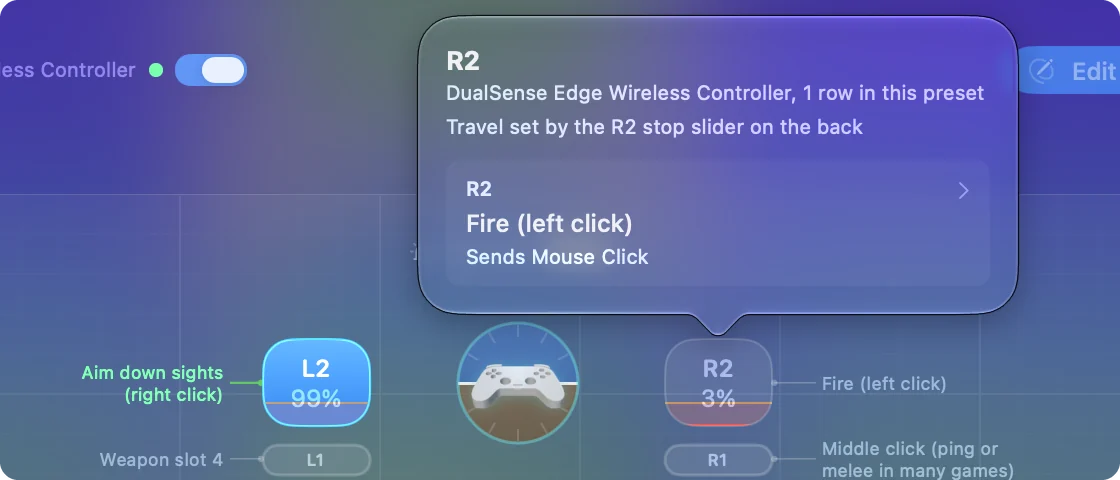
If nothing uses the control, the popover says Nothing in this preset uses it yet and offers Open the editor. You can give an unused control a job on the spot.
Write notes so the key reads like a manual
Under every row in the editor there is a Notes line. Whatever you type there replaces the raw output in the key, so a row that sends Space can read Jump, and a row that sends Command + Shift + 4 can read Screenshot of an area.
Most built-in presets already have notes on their rows, and so do the layouts the Smart Preset Maker builds. A note is worth the minute it takes on a preset you share, or one you come back to after a month.
Read a preset made for a different controller
Open FPS (Xbox) with a DualSense connected and the drawing shows the Xbox controller the preset is made for, lit by your DualSense, with a line under it saying exactly that. The buttons are in the same positions, so the map is still right.
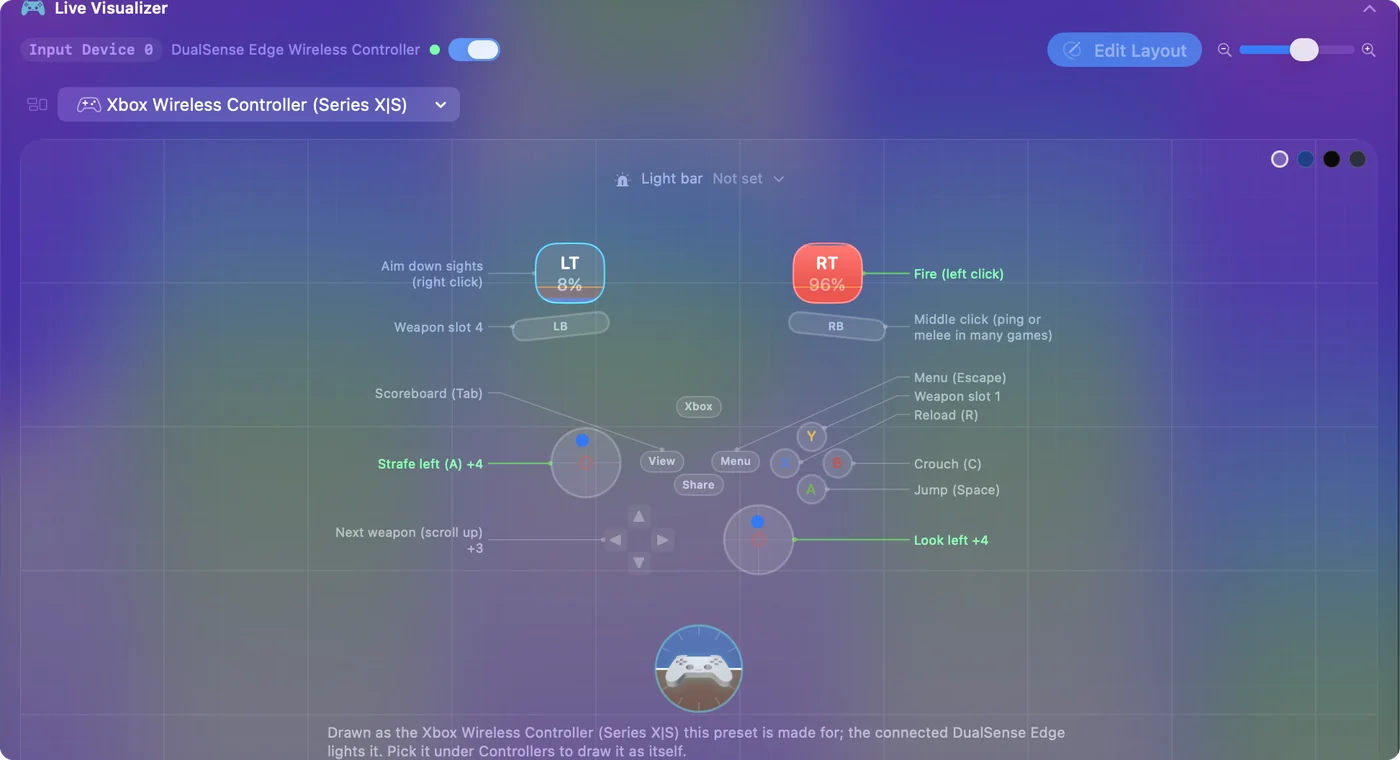
To see your own controller instead, open the panel's menu, go to Controllers, and pick it under Connected. Automatic, at the top of the menu, goes back to the default.
See keyboards, mice and the screen
A preset can use more than a controller, and each controller group gets its own panel with its own menu: Automatic, Screen, Keyboard, Touchpad, Mouse and MIDI, then Connected and a menu for each maker: Xbox, PlayStation, Nintendo and the rest.
- Keyboard. A bound key is drawn at full strength and an unbound one is dimmed.
- Mouse. The same for clicks, the side buttons, scrolling and Force Touch.
- Screen. The preset's screen regions on the display you pick. Clicking a region opens its row.
Dimmed means free: an unbound key is ready for a new job.
Print the map from this site
If you want the map on paper or on another screen:
- Built-in presets. Every built-in preset has a page here with a table of every row: the input, what it sends, the options that differ from the defaults, and the note.
- Ready-made layouts. Each layout in the Smart Preset Maker has a page with an interactive map you can label for PlayStation, Xbox or Switch.
- The controller map. The controller map can show any built-in preset on the controller.
The map cannot float over a game, so a printed table or a second display is the way to keep it in view.
The short version
- Look. Click the preset; the key beside the drawing says what each control does.
- Press. The entry for what you press turns green.
- Click. A control's popover lists every row and opens the editor.
Add notes to your rows, and the key turns into a manual anyone can read.
Questions
Can the map float over a game?
No. The Live Visualizer lives in InputConfig's window. If you need it while you play, keep the window on a second display, or print the preset's table from this site.
Why does a control on the drawing have no entry in the key?
Nothing in the preset uses it. Click the control and choose Open the editor, or press Scan on a new row and press that control.
Does the key show hold and double tap actions?
The key shows the row's note, or its plain output. Click the control for every way it fires, hold and double tap included. Writing a note such as Tap: reload, hold: melee puts both in the key.
Does the preset have to be running?
No. The drawing and the key show the preset you clicked in the sidebar, running or not, and the controls light whenever the controller is connected.
Does it work with VoiceOver?
Yes. Each control on the drawing is announced by its name with its live value, and what it does in the preset is read as its hint.
Related
Free. macOS 14 or later. No account, nothing leaves your Mac. Open source on GitHub.