Why is Logi Options+ not working on my Mac?
 InputConfig is completely free on the Mac App Store. You don't have to make an account, there are no subscriptions, and nothing is locked. Optimized for Apple silicon.
Usually one of three things: a permission is off in System Settings, the app predates Logitech's January 2026 fix for an expired certificate, or the install is damaged and needs a complete uninstall. Logitech documents each fix, and this page walks through them in that order, with what Logitech's own support pages said when I read them on October 22, 2026.
If you only want the mouse buttons to work while Options+ is broken, or without it at all, I make InputConfig, a free Mac app that gives any button macOS receives a job of your choosing. The second half of the page says which Logitech buttons that covers and which ones only Logitech's software can read.
On this page: 11 sections
- Steps
- Match what you see to the fix
- Grant the permissions Logi Options+ needs
- Install the January 2026 certificate patch
- Uninstall Logi Options+ completely
- Pick Logi Options+ or G HUB for your mouse
- See which Logitech buttons macOS receives
- Bind the buttons without Logi Options+
- What it cannot do
- The short version
- Questions
Steps
- Turn on Logi Options+ in System Settings, Privacy & Security, under Accessibility and Input Monitoring, then quit and reopen it.
- Turn on the Logitech entries in System Settings, General, Login Items.
- If Options+ has shown a spinning logo since January 2026, run Logitech's certificate patch over the installed app.
- If it still fails, trash the app, remove the Logitech files from both Library folders, restart and reinstall.
- To use the buttons without it, press Scan on an InputConfig row, press the button, and choose what it sends.
Match what you see to the fix
Most Logi Options+ trouble on a Mac falls into a handful of symptoms, and Logitech has a documented fix for each one. Find your row, then jump to the section that goes with it.
| What you see | Likely cause | Fix |
|---|---|---|
| A purple screen or a spinning logo that never ends, since January 2026 | The expired certificate | Logitech's patch installer |
| The app loads forever on any date | Logitech's background items are off | System Settings, General, Login Items |
| Buttons are assigned but do nothing | A missing permission | Accessibility and Input Monitoring |
| The receiver is not found | The USB accessory prompt was ignored | Allow accessories to connect |
| Flow cannot find the other computer | Bluetooth permission | Privacy & Security, Bluetooth |
| Crashes, or a missing background process after a bad update | A damaged install | A complete uninstall, then a fresh install |
Check the permissions before you reinstall anything, because a reinstall can wipe your settings and a permission takes seconds.
Grant the permissions Logi Options+ needs
Logitech's support article on Logi Options+ permissions, which I read on October 22, 2026, lists what each permission is for. All of them live under System Settings, Privacy & Security, except Login Items, which is under General.
- Accessibility. Logitech says most basic features need it: scrolling, back and forward, gestures, volume and zoom.
- Input Monitoring. Needed for the features the app turns on, including back and forward and gestures. Choose Quit & Reopen when macOS asks.
- Bluetooth. Lets Options+ find a Logitech device that is not connected to this Mac right now. Without it, you cannot Flow into this computer.
- USB accessories. Click Allow when macOS asks about a Logi receiver. If you clicked Ignore, unplug the receiver, set Allow accessories to connect to Ask every time, plug it back in and click Allow.
- Login Items. Logitech's background processes detect your devices. With them switched off, Options+ sits on its loading screen.
- Screen & System Audio Recording. Only for the screenshot key and for presentation remote features such as the Timer and Magnify.
- You: Open System Settings, Privacy & Security, Input Monitoring, and turn on Logi Options+.
- macOS: Asks to quit and reopen the app. If you clicked Later, Logitech says to untick Logi Options+, tick it again and press Quit Now.
- Check: Press a side button in a browser. If back and forward work now, the permission was the problem.
A button that saves in Options+ but does nothing on the Mac is almost always Input Monitoring.
Install the January 2026 certificate patch
On January 7, 2026 Logitech posted that a certificate its Mac apps need had expired, and that Logi Options+ and G HUB had stopped working on macOS because of it. The article was updated on January 8, and I read it on October 22, 2026. Logitech's community post on the same issue says reports began on January 6 on macOS 26.2 Tahoe, and that the certificate secures communication between the app's own processes. That is why the app could show a purple screen or a spinning logo while the mouse itself kept working as a plain mouse.
- Run the patch over the app. Logitech says not to uninstall first, and that settings and customizations stay.
- Download it by hand. The expired certificate also broke the in-app updater, so the fix never arrives by itself.
- Pick the right file. The patch installers cover macOS 26 Tahoe, 15 Sequoia, 14 Sonoma and 13 Ventura. macOS 12 Monterey gets a separate tool called Logi Certificate Patch.
- Do not expect a new number. Logitech's FAQ says the version number stays the same after the patch.
The patch is on Logitech's certificate issue article. Reports of a missing daemon or agent from early 2026 usually trace back to this as well, so try the patch before anything heavier. If Options+ has not opened since January, the patch is the fix, and a reinstall is not.
Uninstall Logi Options+ completely
When the patch and the permissions do not help, a clean start does. Logitech has two articles for this, and I read both on October 22, 2026. Neither names a separate uninstaller app for the Mac: the short version is to close the Options+ window, open Applications, right click Logi Options+ and choose Move to Trash. The complete version removes what that leaves behind. Climb this ladder, smallest step first:
- Trash the app. Close Options+, then move it from Applications to the Trash.
- Search both Library folders. In Finder, choose Go, Go to Folder, type /Library and search for Logitech with the search set to Library. Trash what belongs to Logitech, then do the same in ~/Library.
- Remove the helpers. Logitech names LogiPluginService.app in Applications, Utilities, and the Logi Options+ Driver Installer bundle in the same folder.
- Check the usual hiding places. Application Support, Preferences, Caches, LaunchAgents, LaunchDaemons, PreferencePanes and StartupItems, in both Library folders.
- Restart, update macOS, reinstall. Then grant the permissions again as Options+ asks for them.
Logitech warns that uninstalling can erase your settings, so note your button assignments first. Logitech's complete uninstall article has the full list. Trashing the app alone leaves the background service behind, which is why a quick reinstall often changes nothing.
Pick Logi Options+ or G HUB for your mouse
Logitech runs two apps, and installing the wrong one looks exactly like an app that is not working. Logitech's Logi Options+ page, which I read on October 22, 2026, lists mice, keyboards, touchpads, presentation remotes, webcams and the MX Creative Console, with a download for macOS 14 or later. It points gaming gear to G HUB instead.
- MX, ERGO, Lift, Signature and other everyday mice. Logi Options+.
- Logitech G mice, such as the G502 or the PRO X Superlight. G HUB. Logitech's G HUB page names the PRO X Superlight 2 among its supported devices.
- Very old gaming mice.
G HUB has its own set of fixes on G HUB or Logi Options+ not working on a Mac. If Options+ never lists your mouse, check that it is not a G mouse before you troubleshoot anything else.
See which Logitech buttons macOS receives
Some Logitech controls arrive on the Mac as ordinary mouse buttons or scrolling, and any app can use them. Others are read only by Logitech's software, or handled inside the mouse. Press Scan in InputConfig to see which is which on your own mouse. Quit Options+ first, because a button it has claimed may never reach macOS.
| Control | What I expect | Who can use it |
|---|---|---|
| Left, right and middle click | Standard clicks | Every app |
| Back and forward thumb buttons | Usually Button 4 and Button 5 | Any mapper, if Scan names them |
| Thumb wheel, turned | Sideways scrolling, a Scroll X input | Any mapper |
| Thumb wheel modes, such as zoom or tab switching | Logitech features | Options+ only |
| Gesture button and gestures | Often nothing reaches macOS | Options+, unless Scan names it |
| SmartShift and the wheel mode button | Handled inside the mouse | The mouse, set up in Options+ |
| Easy-Switch | Handled inside the mouse | The mouse itself |
| DPI buttons on G mice | Handled inside the mouse | The mouse, set up in G HUB |
Logitech's own MX Master 3S setup guide says the back and forward buttons only work on a Mac after Options+ is installed, so Scan is the honest test for your model. If a button fills in a row, you can give it a job, and if it does not, it belongs to Logitech.
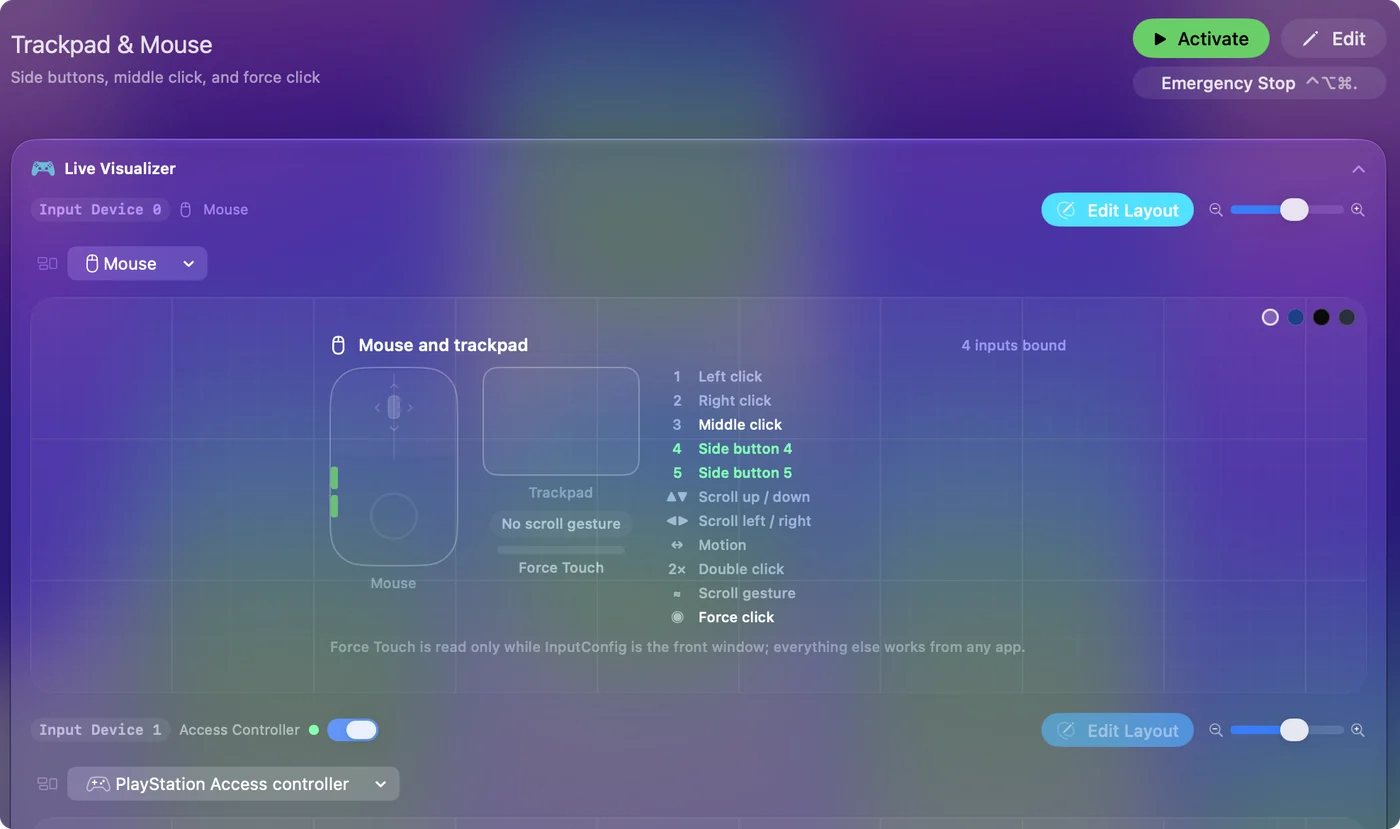
Bind the buttons without Logi Options+
Install InputConfig from the Mac App Store and allow Accessibility access in System Settings, Privacy & Security. Then take one button at a time.
- You: Make a preset, add an input device set to This Mac's mouse or trackpad, add a row, press Scan, and press the back thumb button.
- InputConfig: Names the row, for example Button 4.
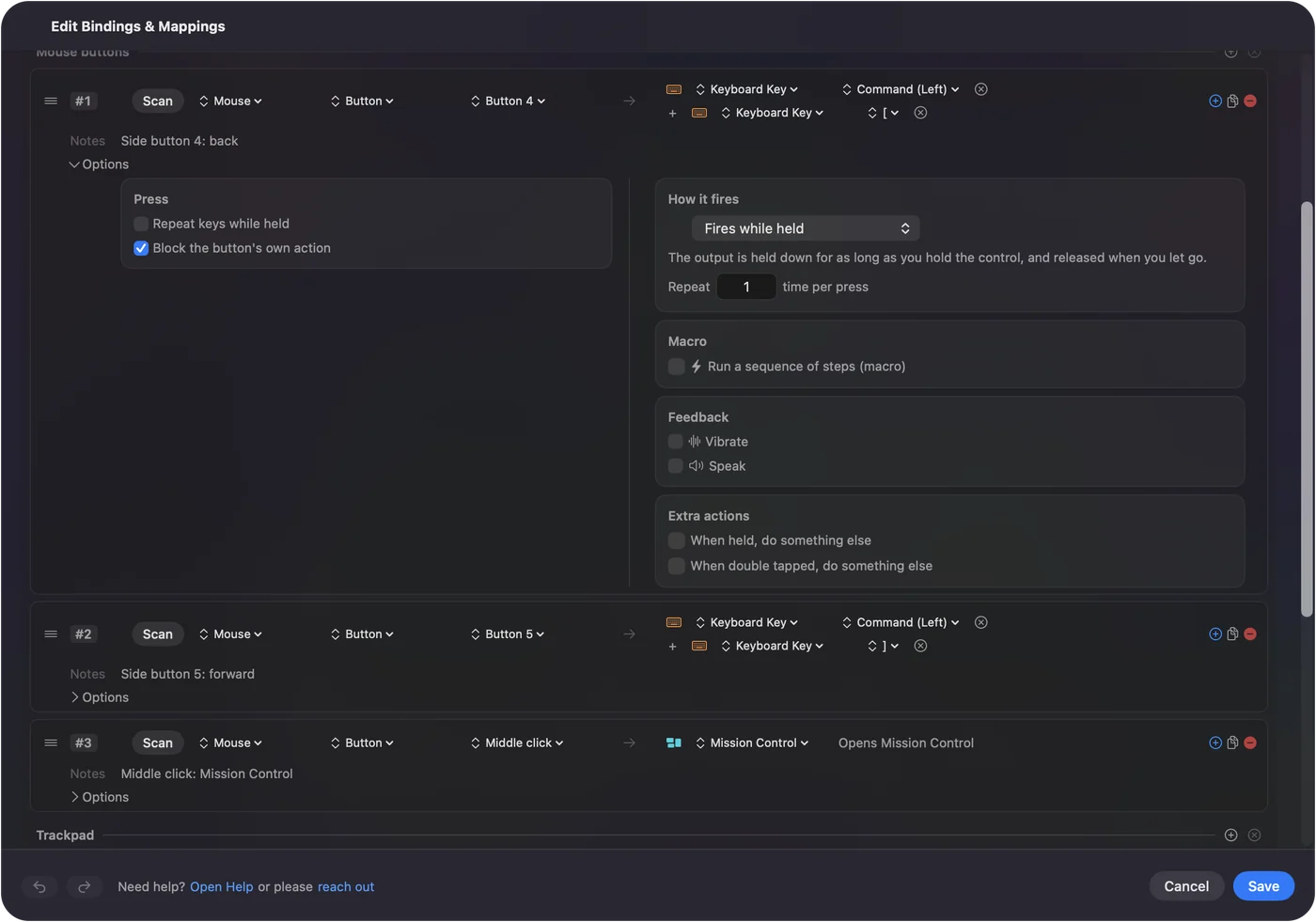
- Check: Choose Keyboard Key with Command and the left bracket, Save, Activate, and press the button in Safari. The page goes back.
Some layouts that replace what people used Options+ for:
- Back and forward. Command left bracket and Command right bracket on the two thumb buttons.
- The thumb wheel. Two Scroll X rows, Control Left Arrow and Control Right Arrow, to move between desktops. The wheel still scrolls sideways in apps that use it.
- A replacement gesture. Mission Control on a tap, Launchpad on a hold, and Start Dictation on a double tap, all on one button that Scan can see.
- App-specific buttons. One preset per app, with Switch presets when the front app changes turned on in Settings, Advanced.
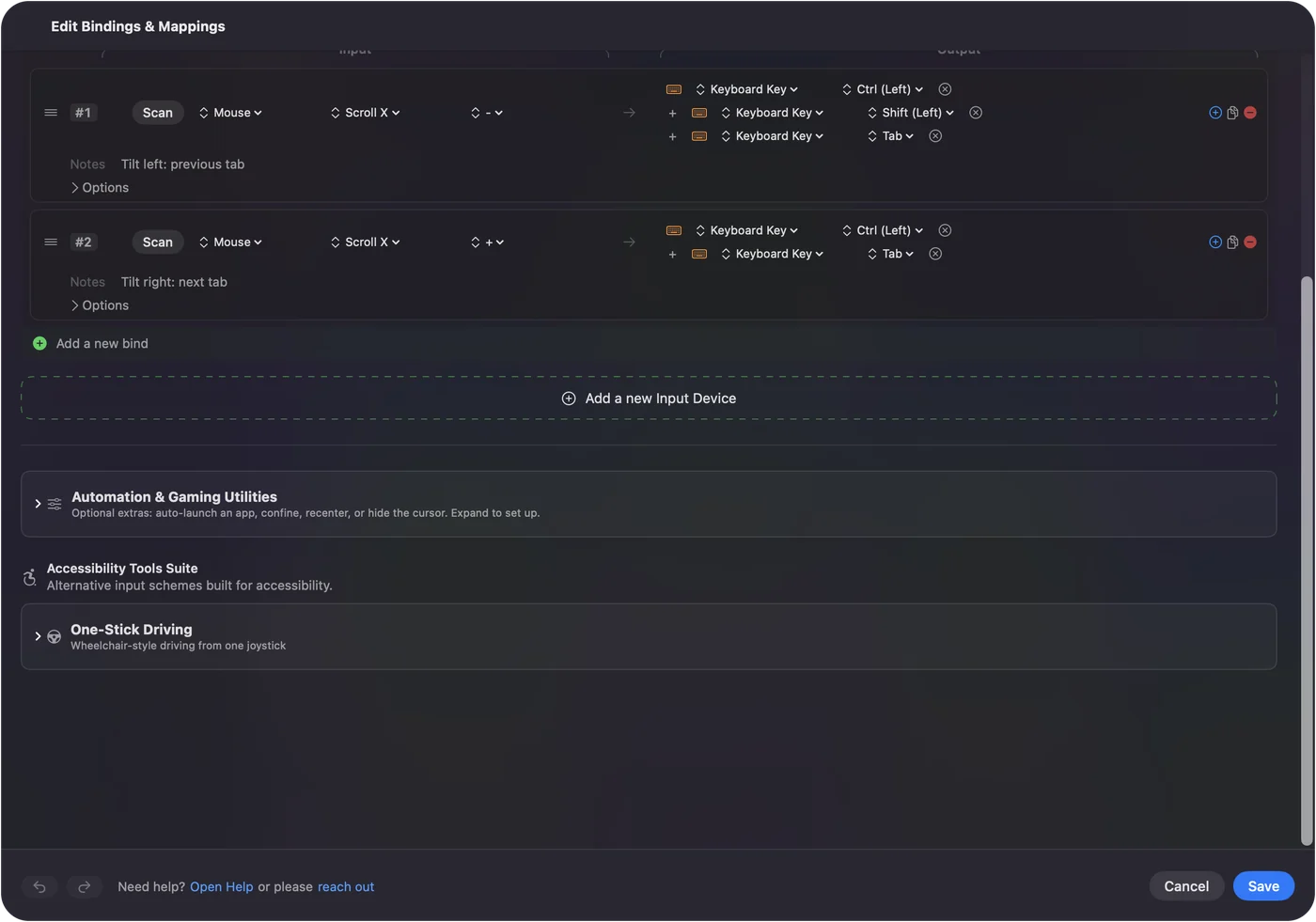
If a browser already reacts to a thumb button, open the row's Options and turn on Block the button's own action in the Press box, so one press does one thing. It works for the middle and side buttons, not left and right click. Block the button's own action, and a thumb button set to Back never goes back twice.
What it cannot do
- Flow and Easy-Switch. Moving between computers is Logitech's own feature.
- Gestures and thumb wheel modes. If Scan names nothing, InputConfig cannot read them, and no other app can either.
- SmartShift, DPI, haptics and firmware. These belong to the mouse and to Logitech's software. InputConfig does not change DPI, scroll feel or acceleration.
- Two mice apart. Every mouse connected counts as one, so two mice cannot have different jobs on the same button.
If you rely on Flow, fix Options+ and keep it, and use InputConfig only for the buttons you want to own. The two run together as long as one button is not given a job in both.
The short version
- Stuck since January. Run Logitech's certificate patch over the app.
- Buttons do nothing. Turn on Accessibility and Input Monitoring, then quit and reopen.
- Still broken. Do the complete uninstall from both Library folders, restart and reinstall.
- Want the buttons today. Scan them in InputConfig and give each one a job.
I would try the permissions, then the patch, then the clean uninstall, and scan the buttons while you wait.
Questions
Why does Logi Options+ not work on my Mac?
Most often Accessibility or Input Monitoring is off, the Logitech Login Items are switched off, or the app needs Logitech's January 2026 certificate patch. Logitech's support pages cover each one.
How do I uninstall Logi Options+ on a Mac completely?
Move the app to the Trash, then search /Library and ~/Library for Logitech files and remove them, including LogiPluginService and the Options+ Driver Installer bundle in Applications, Utilities. Restart before reinstalling.
Does Logi Options+ work on macOS Tahoe?
Logitech's certificate patch lists macOS 26 Tahoe alongside Sequoia, Sonoma and Ventura, and its download page asks for macOS 14 or later.
Why are my Logitech mouse side buttons not working on a Mac?
Options+ needs Input Monitoring for back and forward, and a Mac app has to give Button 4 and Button 5 a job. InputConfig can bind them without Options+ if Scan names them.
Should I use Logi Options+ or G HUB?
Logi Options+ for everyday mice and keyboards such as the MX range. G HUB for Logitech G gaming mice and gear.
Related
Completely free. You don't have to make an account, there are no subscriptions, and nothing is locked. Optimized for Apple silicon. Open source on GitHub.
Updated