How to use a controller D-pad as arrow keys on a Mac
 InputConfig is completely free on the Mac App Store. You don't have to make an account, there are no subscriptions, and nothing is locked. Optimized for Apple silicon.
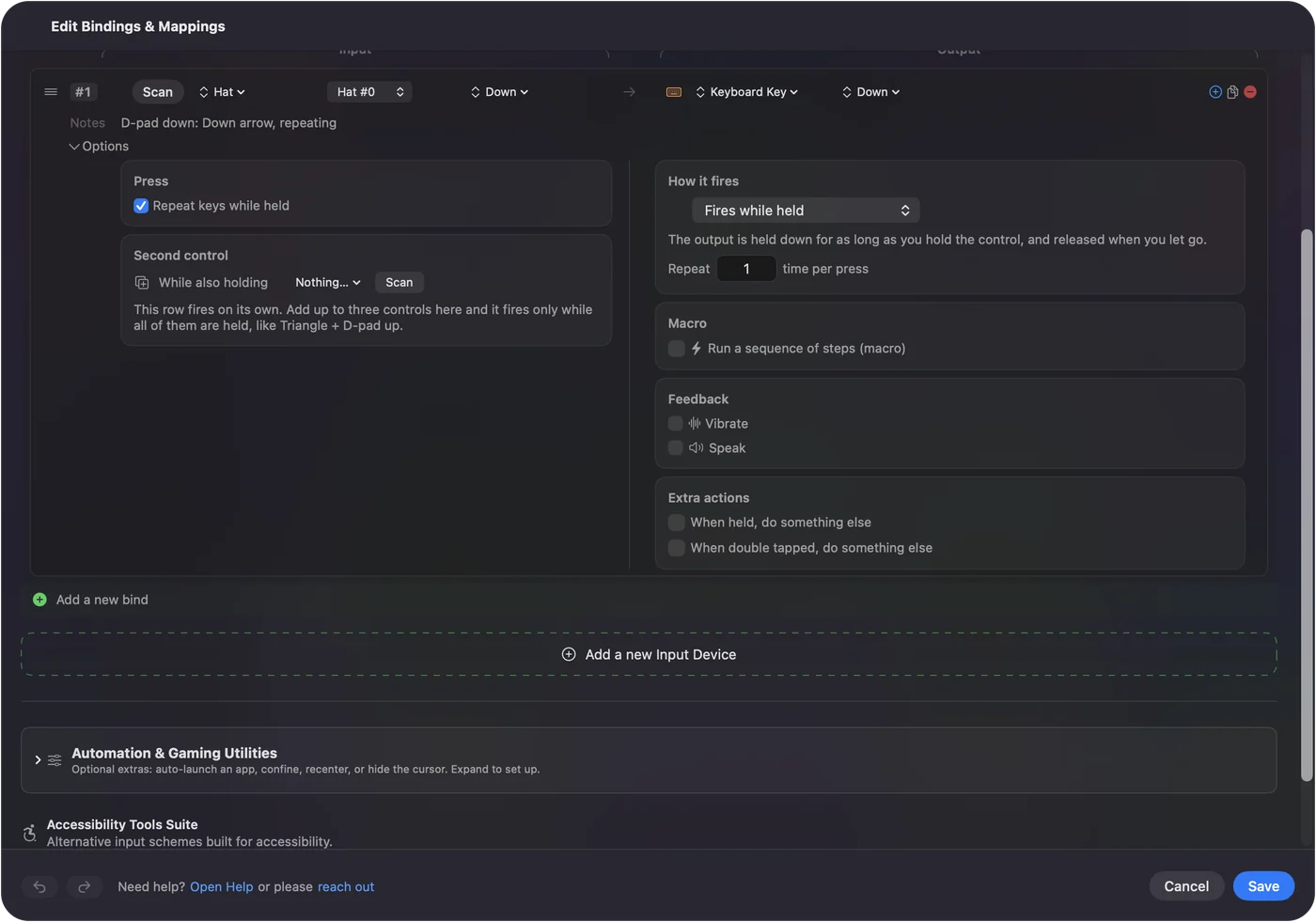
Activate the built-in Desktop Navigation preset in InputConfig and the D-pad sends the four arrow keys in every app. To add it to your own preset, bind each D-pad direction to its arrow as a Keyboard Key, and tick Repeat keys while held so a held direction keeps moving.
I make InputConfig, a free Mac app. Arrow keys from a D-pad are handy for menus, slides, spreadsheets and old games that only know the keyboard.
Steps
- Install InputConfig from the Mac App Store and connect a controller.
- Activate Desktop Navigation. The D-pad now sends the arrow keys.
- For your own preset, add a row for each D-pad direction.
- Set each output to Keyboard Key and pick the matching arrow.
- Tick Repeat keys while held in each row's Options.
Start with Desktop Navigation
- You: Select Desktop Navigation in the sidebar and click Activate.
- InputConfig: Sends the arrow keys from the D-pad, along with a pointer on the left stick.
- Check: Open a document and press the D-pad. The cursor moves.
Add arrows to your own preset
- You: Add four rows. On each, press Scan and press a D-pad direction, set the output type to Keyboard Key and pick that arrow. In Options, tick Repeat keys while held.
- InputConfig: Sends the arrow, and repeats it like a real keyboard while the direction is held.
- Check: Hold the D-pad down in a long list. It keeps scrolling.
Stop diagonals
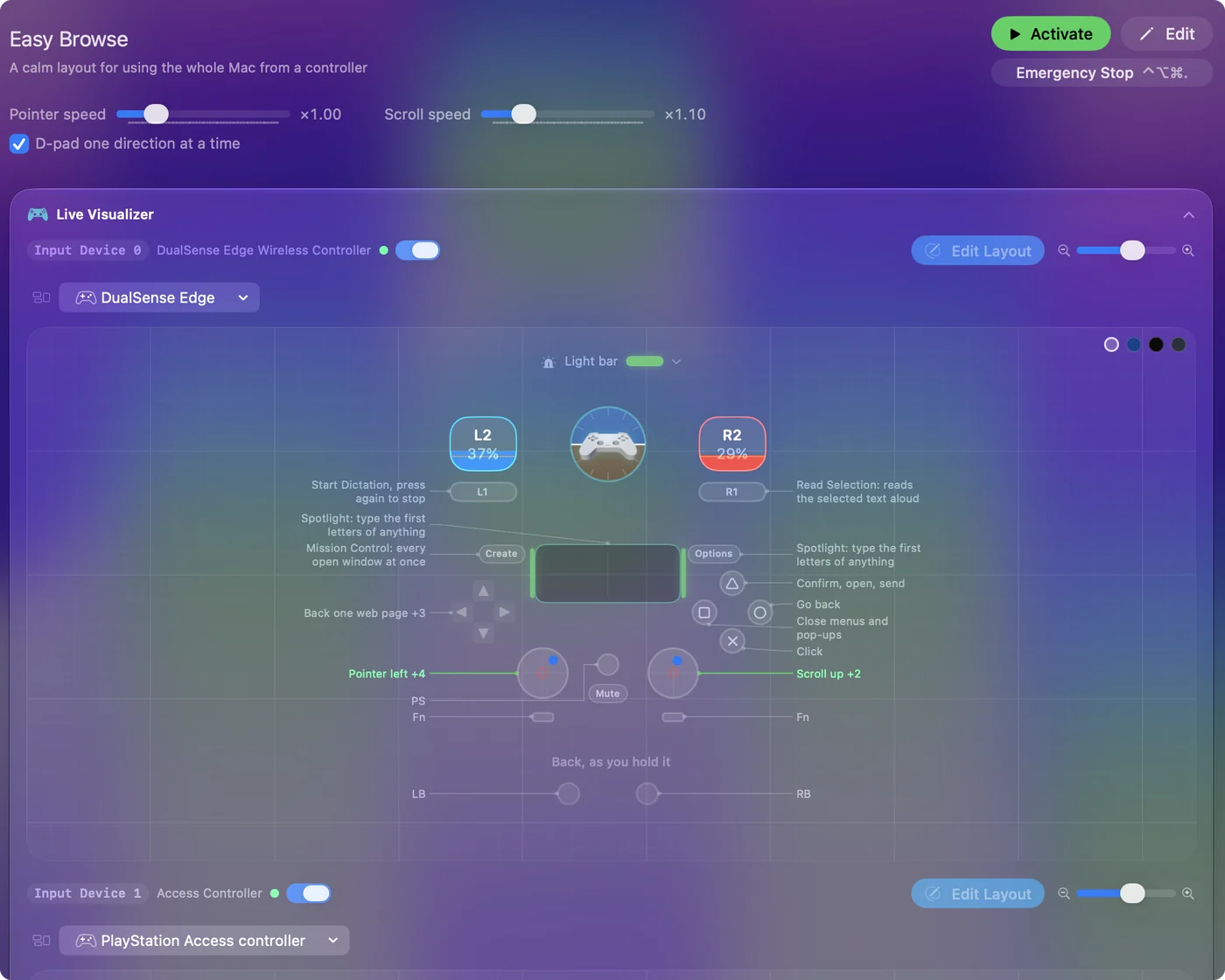
A D-pad can report two directions at once, which sends two arrows together. If a menu jumps the wrong way, tick D-pad one direction at a time on the preset's page. With that ticked, the D-pad sends only one arrow at a time, like a keyboard used with one finger.
What it cannot do
These are real arrow key presses, so they do what the arrow keys do in the app in front, and nothing more. A game that reads the controller itself still sees the D-pad as a D-pad as well, so in such a game you may get both.
The short version
- Fastest. Activate Desktop Navigation.
- Your own preset. Four Keyboard Key rows, with Repeat keys while held.
- No diagonals. D-pad one direction at a time.
Questions
Can a controller D-pad work as arrow keys on a Mac?
Yes. InputConfig's Desktop Navigation preset sends the arrow keys from the D-pad. In your own preset, bind each direction to its arrow as a Keyboard Key.
Why does holding the D-pad only move once?
The row is sending one key press. Tick Repeat keys while held in the row's Options and a held direction repeats like a held arrow key.
How do I stop the D-pad sending diagonals?
Tick D-pad one direction at a time on the preset's page. The D-pad then sends one arrow at a time.
Related
Completely free. You don't have to make an account, there are no subscriptions, and nothing is locked. Optimized for Apple silicon. Open source on GitHub.
Updated