Inkscape from a game controller
 The Inkscape layout is built into InputConfig, free on the Mac App Store. You don't have to make an account, there are no subscriptions, and nothing is locked. Optimized for Apple silicon.
On a Mac: Inkscape for Mac reads its single-letter tool keys and its Command shortcuts from this layout as shipped.
Yes, you can draw vectors in Inkscape on a Mac from a game controller. Vector drawing is tool switching, and Inkscape's tools are single letters: S, P, N and B on the face buttons, R and Z on the bumpers. The D-pad is zoom, including 100 percent and fit to page, which you press more than any tool.
On this page: 7 sections
The layout, control by control
How the layout thinks
- Pick a tool. Selection (S) on the bottom face button, Pencil (P) on the right, Node (N) on the left, Pen (B) on the top. Rectangle (R) and Zoom (Z) on the bumpers.
- Zoom. D-pad up and down zoom in and out. Left is 100 percent (1), right fits the page (5).
- Group and align. Group and ungroup (Command G, Shift Command G) on the stick clicks, Align and Distribute (Shift Command A) on Share or View, Save on Options.
- Draw. The left stick is the pointer, the right trigger draws, and the left trigger opens the context menu.
- Undo and redo. The right stick does not scroll here: up is undo and down is redo, one step per push.
Inkscape reads its tool keys and Command shortcuts from this layout as shipped. Zoom levels on the D-pad are the presses you make most.
Tune it for node editing
- A slow pointer. Nodes are small. Lower the Pointer speed slider on the preset's page, or add slower pointer rows behind a held bumper.
- Nudge. The arrow keys move a selection. Put them behind a chord on the D-pad.
- Pan. Inkscape pans with the middle mouse button held. A Middle Click row on a spare button, held, and the stick drags the canvas.
- Scroll instead of undo. Change the two right stick rows to Mouse Wheel if you would rather scroll.
If Group does nothing, you changed Inkscape's shortcut. Scan the row. A slower pointer behind a held bumper makes nodes easy to land on.
The short version
- Tools on the face buttons. They send S, P, N and B.
- Zoom on the D-pad. Including 100 percent and fit.
- Undo on the right stick. Or change it to scroll.
Illustrator and Affinity Designer have their own entries. Tool switching and zoom are most of the work, and both are under your thumbs.
Get it in two clicks
- Get InputConfig free on the Mac App Store, open it, and click Smart Preset Maker on the welcome screen.
- Search for Inkscape and pick it. The layout is created as a preset in your sidebar, named and ready.
- Press Activate. Every row can be changed afterwards: the editor's Scan button rebinds any control the moment you touch it.
Every binding, as a table
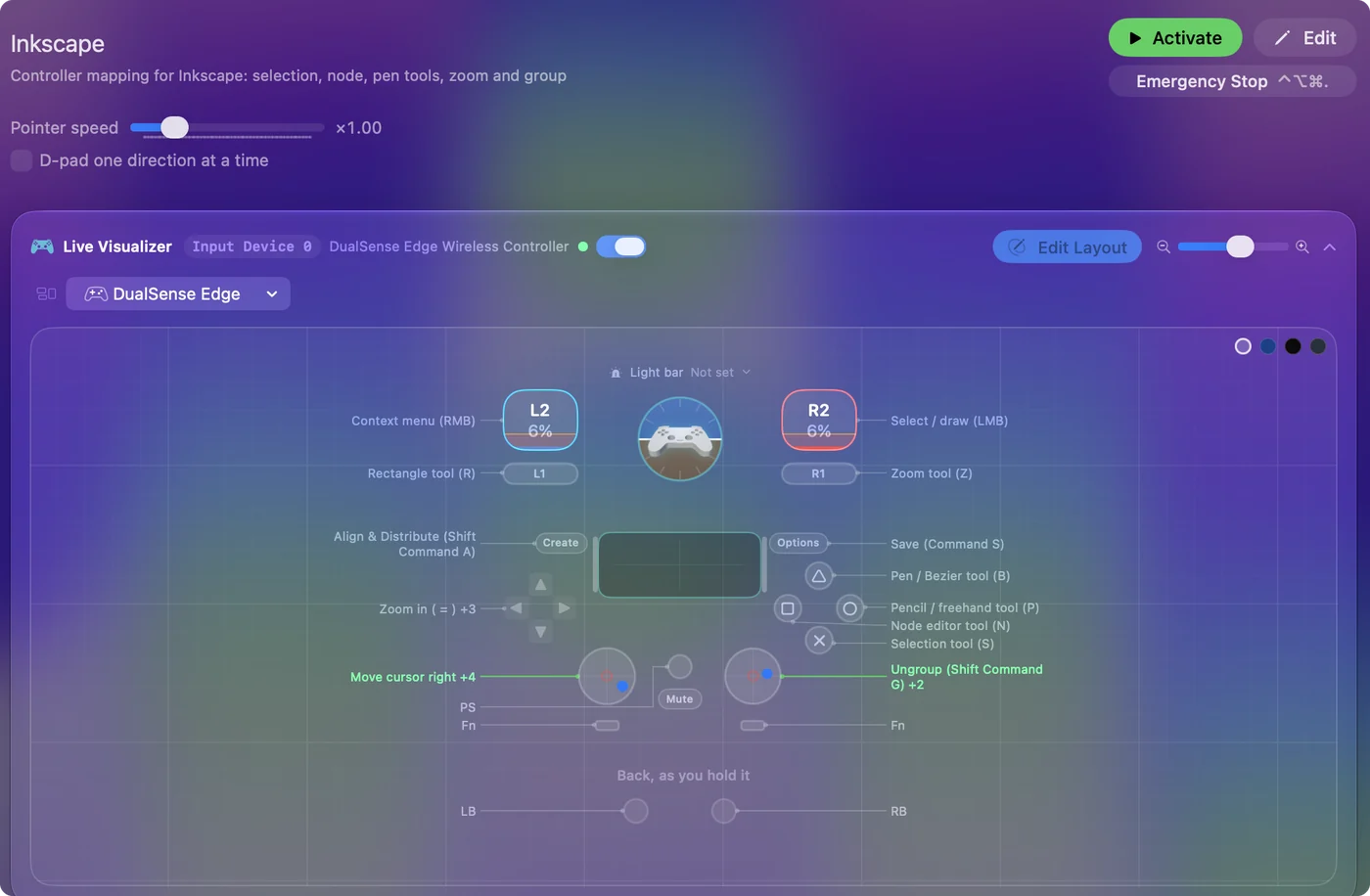
| Controller | Sends | What it does |
|---|---|---|
| Left stick right | Mouse motion right (speed 16) | Move cursor right |
| Left stick left | Mouse motion left (speed 16) | Move cursor left |
| Left stick down | Mouse motion down (speed 16) | Move cursor down |
| Left stick up | Mouse motion up (speed 16) | Move cursor up |
| Right trigger | Left click | Select / draw (LMB) |
| Left trigger | Right click | Context menu (RMB) |
| A / Cross | S | Selection tool (S) |
| X / Square | N | Node editor tool (N) |
| Y / Triangle | B | Pen / Bezier tool (B) |
| B / Circle | P | Pencil / freehand tool (P) |
| LB / L1 | R | Rectangle tool (R) |
| RB / R1 | Z | Zoom tool (Z) |
| D-pad up | = | Zoom in ( = ) |
| D-pad down | - | Zoom out ( - ) |
| D-pad left | 1 | Zoom 100% (1) |
| D-pad right | 5 | Zoom to fit page (5) |
| L3 (left stick click) | Command (Left), G | Group (Command G) |
| R3 (right stick click) | Shift (Left), Command (Left), G | Ungroup (Shift Command G) |
| Back / Share / Select | Shift (Left), Command (Left), A | Align & Distribute (Shift Command A) |
| Right stick down | Command (Left), Shift (Left), Z | Redo (Command Shift Z) |
| Right stick up | Command (Left), Z | Undo (Command Z) |
| Start / Options | Command (Left), S | Save (Command S) |
Button names follow the Xbox / PlayStation pair shown in the editor, so A / Cross is the bottom face button on either pad. On a Switch Pro Controller the bottom button is labeled B; the mapping still fires on position.
Questions
Group does nothing. Why?
Inkscape on a Mac uses Command G. If you changed the shortcut, Scan the row.
Why does the right stick undo instead of scrolling?
This layout uses it for undo and redo. Change those two rows to Mouse Wheel if you would rather scroll.
Related
Completely free. You don't have to make an account, there are no subscriptions, and nothing is locked. Optimized for Apple silicon. Open source on GitHub.
Updated