Dictation from a game controller
 The Dictation Control layout is built into InputConfig, free on the Mac App Store. You don't have to make an account, there are no subscriptions, and nothing is locked. Optimized for Apple silicon.
On a Mac: macOS does the dictation. This layout presses the button and edits the result. The big button ships as F5, so switch it to the Start Dictation output, below.
Yes, a controller button can start Mac dictation, and this layout is for fixing what dictation gets wrong: the cursor by word on the bumpers, by character on the D-pad, delete a word on a face button. macOS does the dictation. InputConfig presses the button and edits the result. Change one row first, then add these rows to every writing preset you have.
The layout, control by control
How the layout thinks
- Start and stop. The big button, once you change it to Start Dictation (next section).
- Fix. Delete back on the left face button, delete a word (Option Delete) on the top, Cancel (Escape) on the right.
- Move. The D-pad moves by character and line, the bumpers by word (Option and the arrows).
- Finish. Return on Start.
- Point and click. The left stick is a slow pointer and the right trigger clicks, to put the cursor in a text field.
Change the big button to Start Dictation
This layout predates InputConfig's Start Dictation output, so its big button sends a plain F5.
- You: Switch Dictation on once in System Settings, Keyboard. Then click Edit, open the bottom face button's row, set the output to System Function, Start Dictation, and Save.
- InputConfig: Presses the Mac's own dictation key, the microphone key on a recent MacBook, so it works on a Mac mini or with a keyboard that has no microphone key.
- Check: Click into a text field with the right trigger and press the big button. Dictation starts listening, and a second press stops it.
Dictation types into whatever has focus, so click the field first. I dictate most of what I write, and the delete-word and word-jump rows are what make that practical from a controller.
Tune it
- Hear it back. A Speak Selection row reads the selected text aloud, which catches the words your eyes skip.
- Feel it start. Tick Vibrate under Feedback in the dictation row's Options, so you know it is listening.
- Hold to talk. Third-party dictation apps that listen while a key is held work too: a row holds its key for as long as you hold the button. YapToText, my free dictation app, has a Hold to talk setting for exactly that.
Dictation is a toy until fixing it is as easy as speaking, and these rows are what make it that easy.
Get it in two clicks
- Get InputConfig free on the Mac App Store, open it, and click Smart Preset Maker on the welcome screen.
- Search for Dictation Control and pick it. The layout is created as a preset in your sidebar, named and ready.
- Press Activate. Every row can be changed afterwards: the editor's Scan button rebinds any control the moment you touch it.
Every binding, as a table
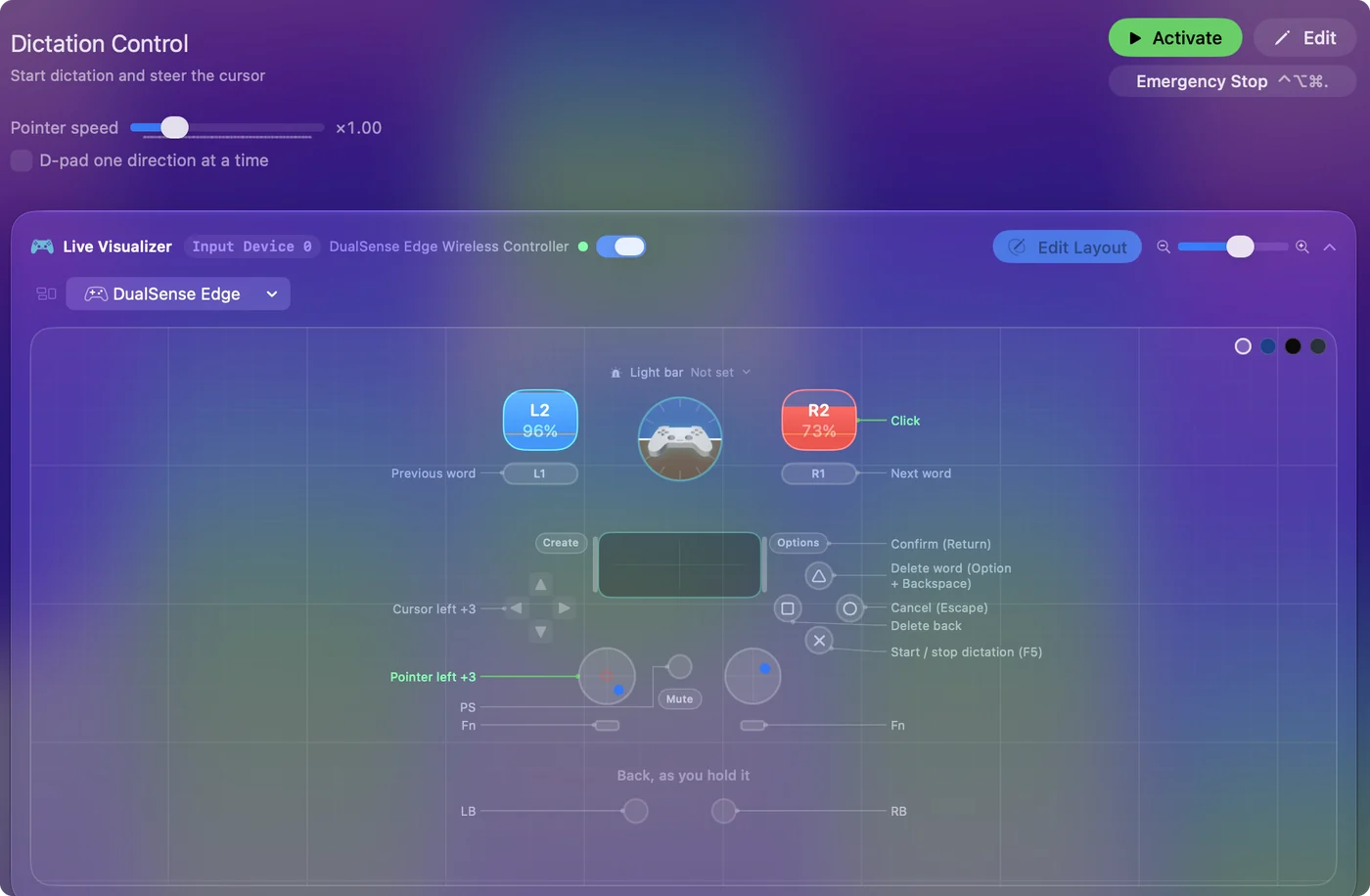
| Controller | Sends | What it does |
|---|---|---|
| A / Cross | F5 | Start / stop dictation (F5) |
| B / Circle | Escape | Cancel (Escape) |
| Start / Options | Return | Confirm (Return) |
| X / Square | Backspace | Delete back |
| Y / Triangle | Alt / Option (Left), Backspace | Delete word (Option + Backspace) |
| D-pad left | Left | Cursor left |
| D-pad right | Right | Cursor right |
| D-pad up | Up | Line up |
| D-pad down | Down | Line down |
| Left stick left | Mouse motion left (speed 14) | Pointer left |
| Left stick right | Mouse motion right (speed 14) | Pointer right |
| Left stick up | Mouse motion up (speed 14) | Pointer up |
| Left stick down | Mouse motion down (speed 14) | Pointer down |
| Right trigger | Left click | Click |
| LB / L1 | Alt / Option (Left), Left | Previous word |
| RB / R1 | Alt / Option (Left), Right | Next word |
Button names follow the Xbox / PlayStation pair shown in the editor, so A / Cross is the bottom face button on either pad. On a Switch Pro Controller the bottom button is labeled B; the mapping still fires on position.
Questions
Does InputConfig do the dictation?
No, macOS does. InputConfig presses the button and fixes the text.
Can I use this with a dictation app instead of Apple's?
Yes, if the app has a keyboard shortcut. Change the big button's output to that key combination.
Related
Completely free. You don't have to make an account, there are no subscriptions, and nothing is locked. Optimized for Apple silicon. Open source on GitHub.
Updated